Appearance - Make innoGPT your workspace
You use innoGPT every day—so why should it look like everyone else’s? In Settings → Appearance, you can customize your personal colors, backgrounds, and visual effects to suit your taste. From a subtle light mode to an elegant liquid glass look, anything is possible.
💡 Tip: All changes are immediately visible in the live preview—you can see exactly how your chat will look before you save.
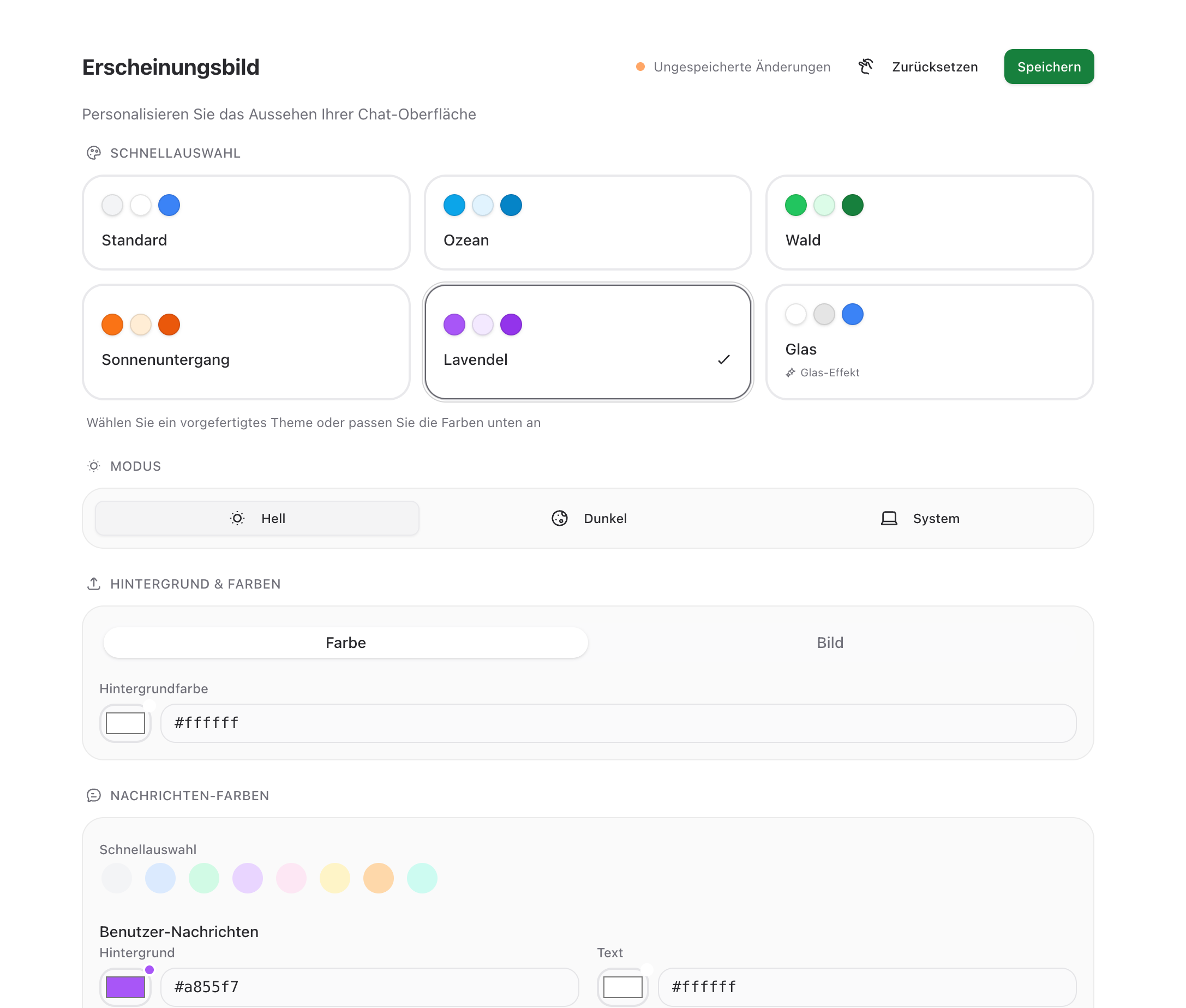
How to open the Appearance settings
Click on your profile picture in the bottom left corner
Select Settings
In the left sidebar, select Appearance
Quick selection: Pre-designed themes
If you want something quick and stylish, just use one of the six pre-made themes:
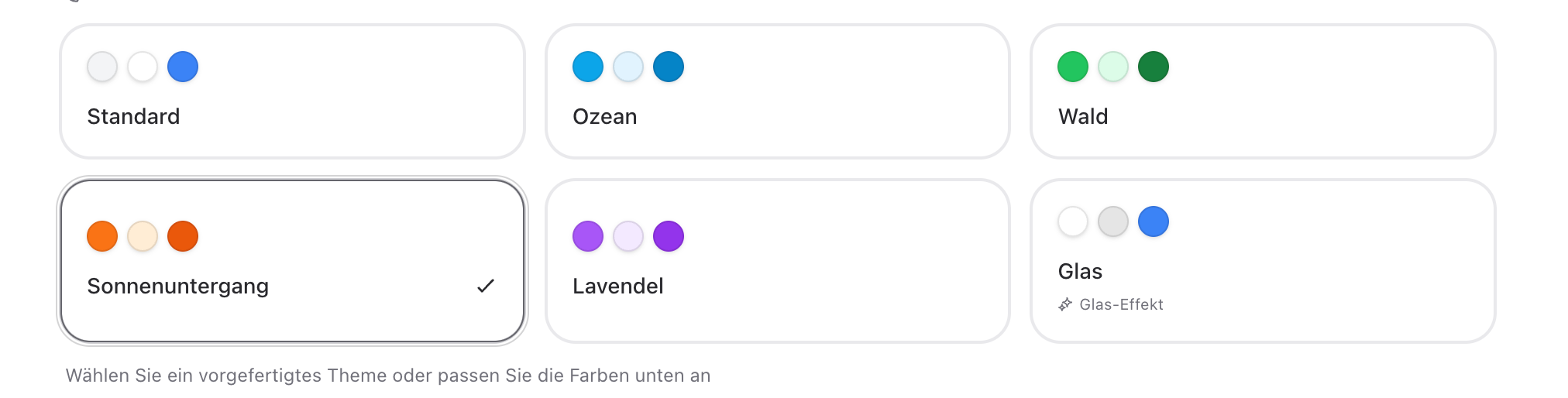
Just click on the theme you want — the colors will be applied immediately.
Mode: Light, Dark, or System
In the MODE section, you can choose between three options:
Light — permanently light look
Dark — permanent dark look, easy on the eyes during long sessions
System — innoGPT automatically follows your operating system settings
💡 Recommendation: “System” is the smartest choice — light in the morning, automatically dark in the evening.
Customize background & colors
Background Color (Solid)
Select a color and click on the color swatch to choose your own color code (Hex)
Background image
Select “Image” and upload your own image
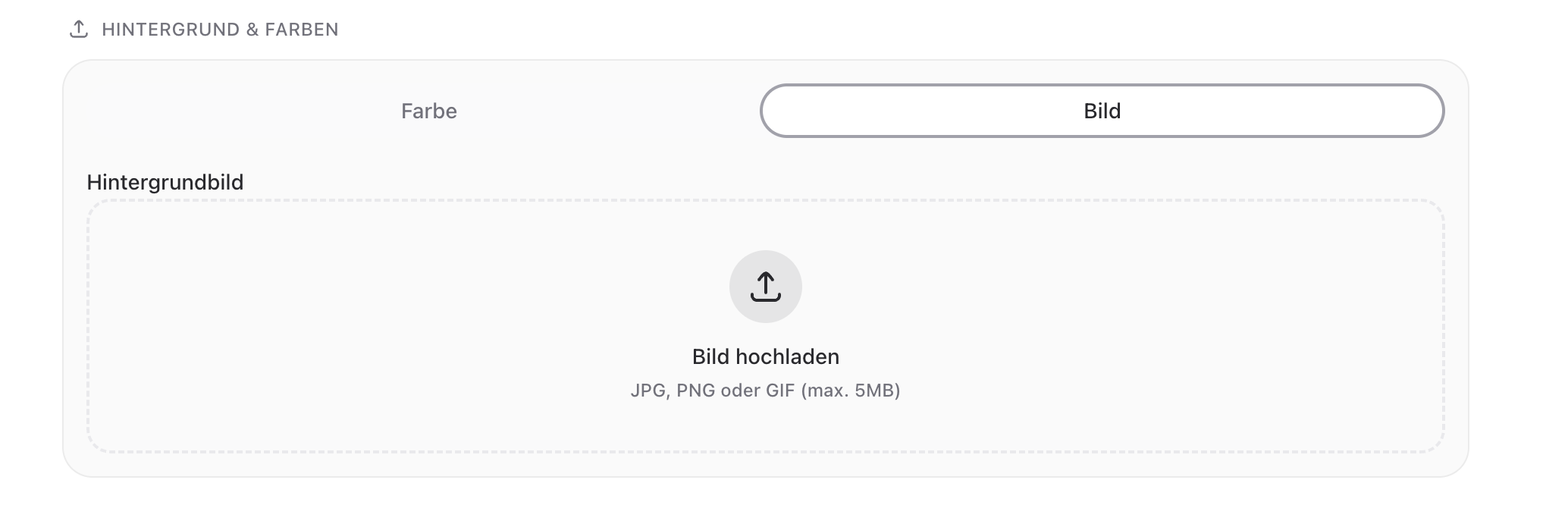
Ideal for branding, brand colors, or simply your favorite photo
📝 Note: The background image is only visible to you — other Workspace members see their own.
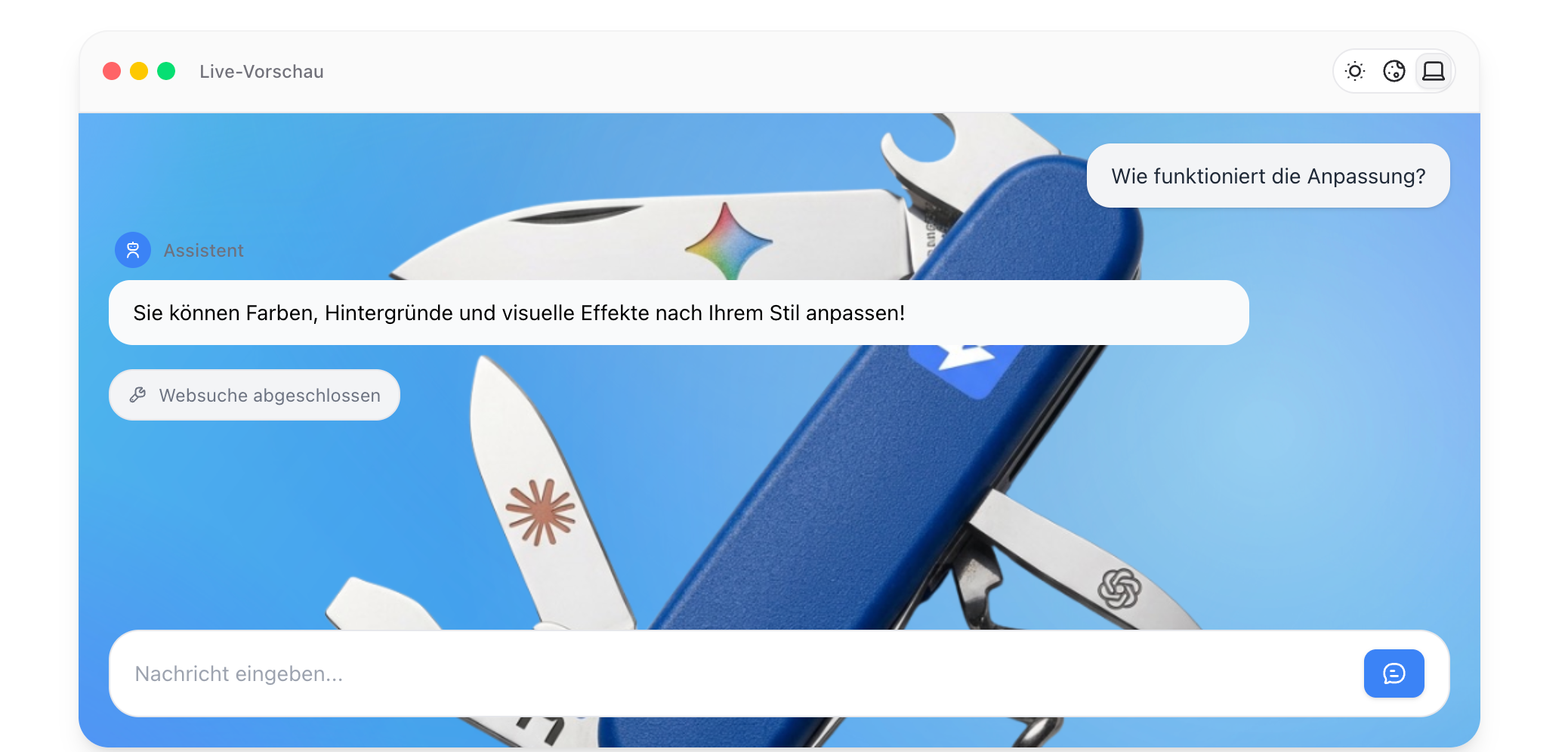
Customize message colors
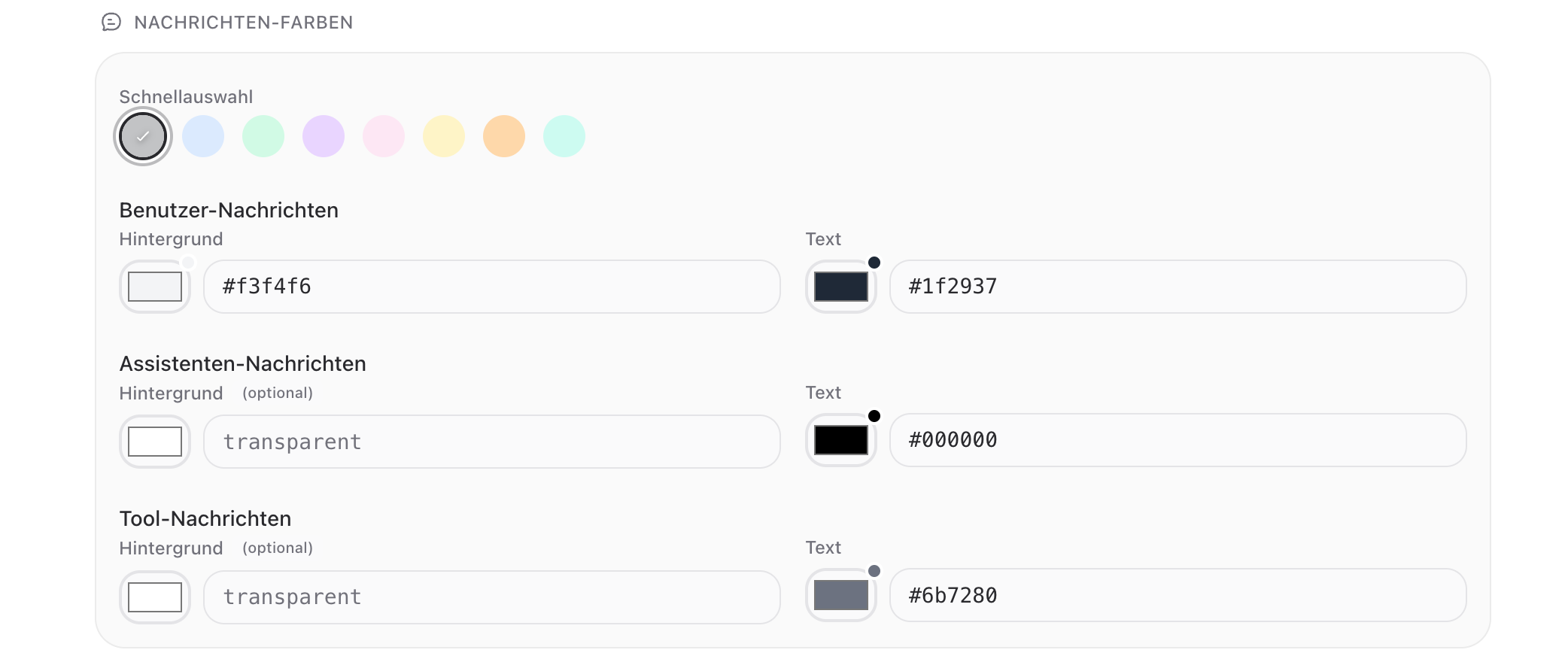
You can customize the colors for the three message types separately:
User messages (your messages)
Customizable background and text
Assistant messages (AI responses)
Background is optional (can be transparent)
Text can be freely chosen
Tool messages (e.g., web search, data analysis)
Background is optional
Text can be freely selected
You can also apply harmonious color palettes with a single click using the quick selection above.
Visual effects
Liquid Glass effect (Beta)
With the Liquid Glass effect toggle, you can give your chat a modern, translucent look—messages appear as if made of frosted glass. Especially beautiful when combined with a subtle background image.
⚠️ Beta feature: On older computers or in the Safari browser, the effect may slightly impact performance. If you notice lag, simply disable it again.
Standard Messages with Solid Colors
If you don’t like the Liquid Glass effect, turn it off—messages will then be displayed in clear, opaque colors.
Accent color
The accent color determines the color of buttons, links, and highlights—such as the “New Chat” button or active menu items.
💡 Tip: If your company has a brand color, set it here as the accent color—this way, innoGPT will immediately feel like a tool that belongs to your company.
Save and Reset
Save (top right) — applies your changes
Reset — discards your changes and restores the last saved theme
⚠️ Important: If you leave the page without saving, unsaved changes will be lost.
Frequently Asked Questions
Will my settings be applied across all devices?
Yes — your theme is linked to your account and syncs across all devices (browser, desktop app, iOS app).
Can my colleagues see my customizations?
No — the theme is a personal setting. Everyone can choose their own look freely.
Can I remove my background image later?
Yes — just switch back to "Color" instead of "Image."
Why does the Liquid Glass effect look different for me?
The effect uses modern browser features. If your browser is outdated or hardware acceleration is disabled, the effect will be less pronounced.