Document templates in innoGPT
With innoGPT, you can not only generate Word, PDF, Excel, and PowerPoint documents, but also have your own templates filled out automatically. This allows you to use your corporate design while saving time when creating recurring documents such as quotes, reports, or presentations.
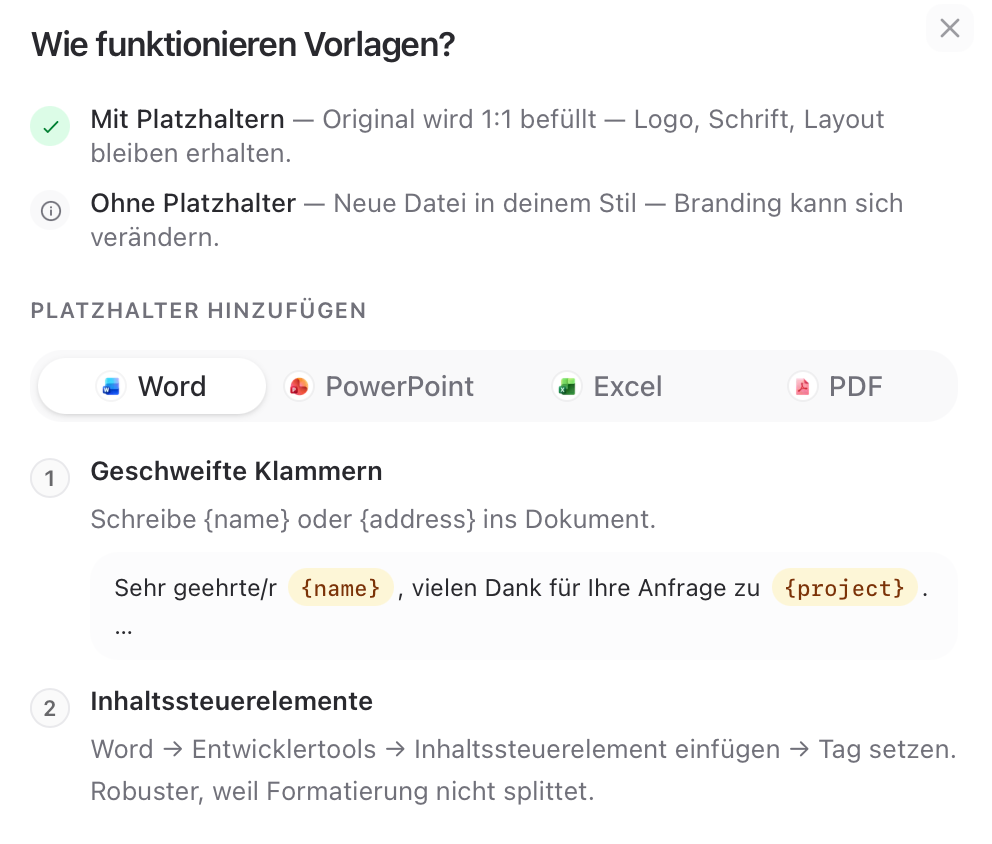
The recommended workflow:
Placeholder → Template → AI-powered filling
The fastest way to professional documents consists of three steps:
Create placeholders yourself or have the AI generate them—innoGPT suggests useful placeholders for your document. Example prompt: “Here is my invoice; please insert placeholders in the format {} so we can programmatically fill them in.”
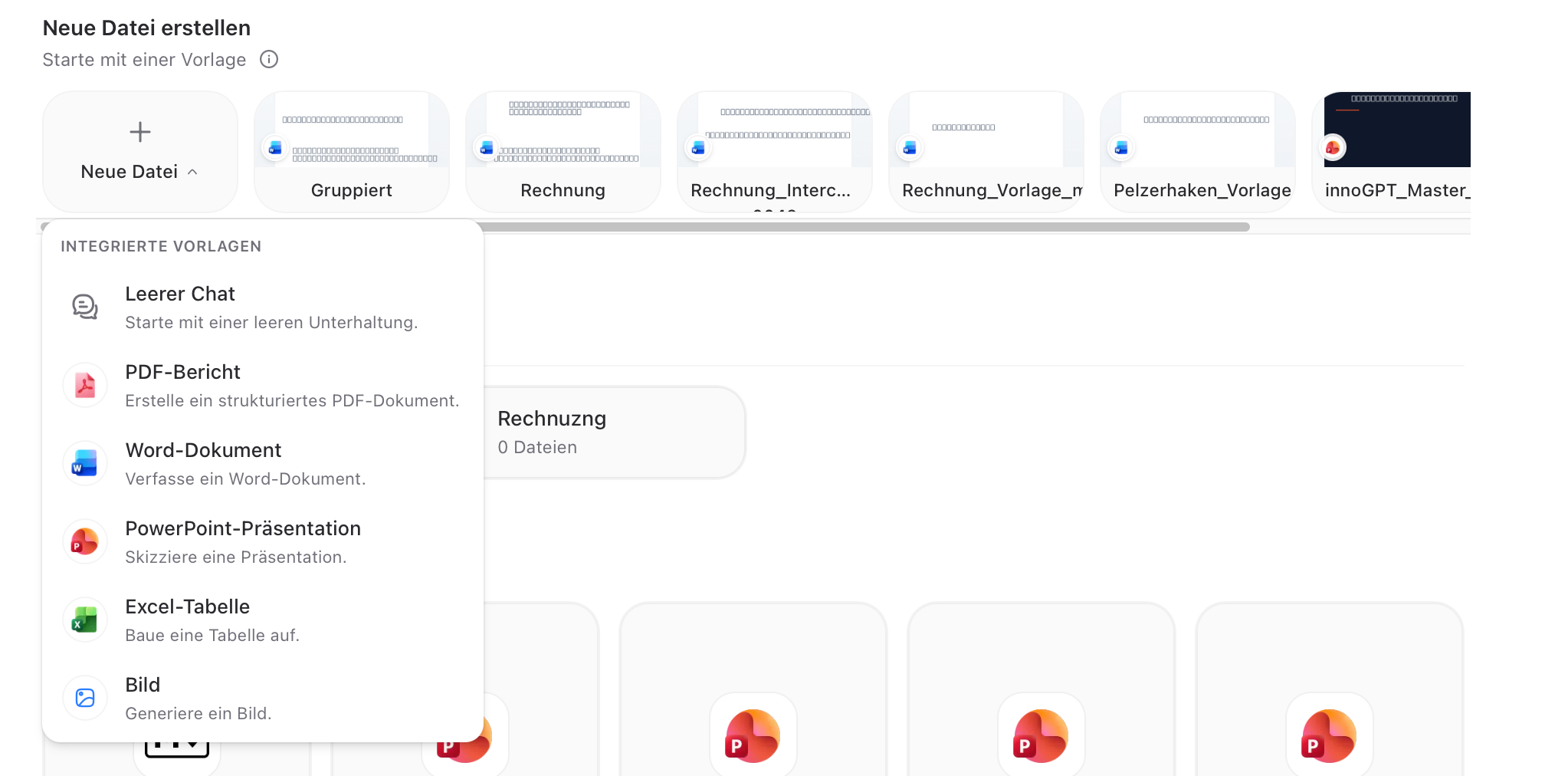
Upload a template – under Files – Create New File: you add your Word or PowerPoint template with the placeholders.
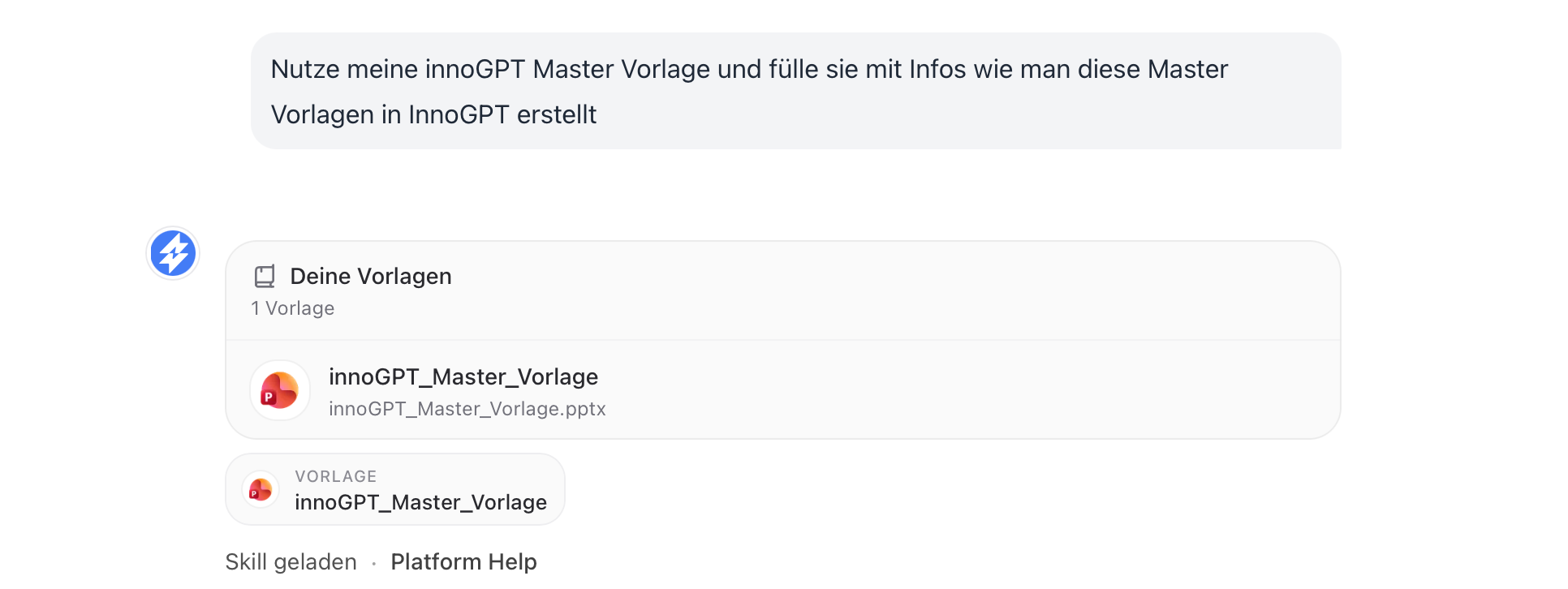
Let the AI fill the template – innoGPT automatically fills all fields with the correct content
The result: A finished document in your corporate design, precisely formatted, without manual copy-pasting.
Why this workflow? You retain full control over layout and design, while the AI handles only the content-related work. This saves time and guarantees consistent results.
Detailed instructions: Step 1: Have the AI fill in the placeholders
Before you build your template, have innoGPT generate suitable placeholders. That way, you won’t forget any important fields.
Here’s how to do it
Open a new chat in innoGPT
Describe the document you want to create (e.g., “IT Services Proposal,” “Quarterly Report,” “Client Presentation”) Upload the document
Ask the AI to suggest a list of useful placeholders in the
{platzhalter_name}format
Example prompt
Ich erstelle ein Angebotsdokument für ein IT-Beratungsprojekt in Word.
Schlage mir alle sinnvollen Platzhalter im Format {{platzhalter_name}} vor,
die ich in mein Template einbauen sollte. Strukturiere sie nach Abschnitten
(Kopfdaten, Kundeninfo, Leistungen, Preise, Footer). Gebe mir das fertige Dokument aus.
Tip: Use descriptive names like
{{kunden_name}},{{projekt_titel}},{{angebotsdatum}}instead of cryptic abbreviations. This makes filling in the document much easier later on.
Step 2: Edit your template in Word or PowerPoint
Now edit your template in your favorite tool—using the placeholders from Step 1.
For Word documents (.docx)
Open Word and design your document as desired
Insert your logos
Make sure the spelling is consistent—
{Kunde}Save the file as .docx
For PowerPoint presentations (.pptx)
Create your presentation with all slides and design elements
Placeholders can also be included in tables and charts
Insert logos
Save the file as .pptx
Example of a template:
innoGPT_Master_Vorlage.pptx
86.4 KB• Presentation
Examples of well-named placeholders
Step 3: Upload and fill out the template in innoGPT
Now comes the magic moment: innoGPT automatically recognizes your placeholders and fills them in according to your briefing.
Here’s how it works
Open a new chat and tell it to use the template named …
Describe the content you want innoGPT to insert for each placeholder—either as continuous text or as a structured list -Do some research beforehand or use a wizard
innoGPT It recognizes all placeholders and fills them in automatically
You’ll receive a finished file in its original format that you can download right away
Example prompt for filling in
Hier ist mein Angebotstemplate. Bitte befülle alle Platzhalter mit folgenden Daten:

- Kunde: Mustermann GmbH, Hamburg
- Ansprechpartner: Frau Anna Schmidt
- Projekt: Einführung eines internen KI-Assistenten
- Leistungen: Beratung (5 Tage), Setup (3 Tage), Schulung (2 Tage)
- Gesamtpreis: 18.500 € netto
- Gültigkeit: 30 Tage

Gib mir das fertige Word-Dokument zurück.
Tip: You can also upload a separate Excel spreadsheet, PDF, or note with the content. innoGPT automatically extracts the appropriate values and assigns them to the placeholders.
Alternative: Generate documents completely from scratch
If you don’t have a template, innoGPT can also create complete documents from scratch. With or without placeholders, so you can replace the content later.
For Word documents
Describe to the AI what kind of document you need (content, structure, length, style)
innoGPT It creates a .docx file with headings, paragraphs, and formatting
You download the file directly from the chat
For PowerPoint presentations
Specify the topic, number of slides, and desired style
innoGPT Generates a .pptx file with a title slide, content slides, and transitions
You download the presentation directly and can further customize it
Best practices for good results
When creating templates
Use consistent placeholder names (e.g., always lowercase, always with underscores)
Include clear contextual information in the template, e.g., “[Insert customer name here]” as tooltip text
Tables with numbered placeholders for recurring rows (
{position_1},{position_2})Do not use special characters in placeholder names—only letters, numbers, and underscores
Frequently Asked Questions
Which file formats are supported? Word (.docx), PowerPoint (.pptx), and Excel (.xlsx). PDFs with AcroForm fields can also be filled out.
Are design and formatting preserved? Yes. Fonts, colors, logos, and layouts from your template should be carried over. Only the placeholders are replaced.
Can I use images as placeholders? Yes, you can also specify that an image should go in that spot; the image will then be generated by AI, e.g., {Image1}