Apps & integrations in innoGPT
With integrations, you can connect innoGPT directly to the tools you use every day—Microsoft Teams, Google Workspace, Notion, Jira, Google Sheets, and many more. This lets you bring your data into the chat without constantly switching between tools.
✅ Prerequisites
Before connecting an app, you’ll need:
An innoGPT account with permission to set up integrations
An active, licensed account with the target service
For enterprise tools, admin approval in your tenant/workspace may be required
⚠️ Important: For most integrations, you need a valid subscription to the connected service. innoGPT only provides the bridge—you must have the actual license for Outlook, SharePoint, Google Workspace, Jira, etc. With free or expired accounts, the connection will either fail or certain features will be limited.
Step-by-step: Connect an app
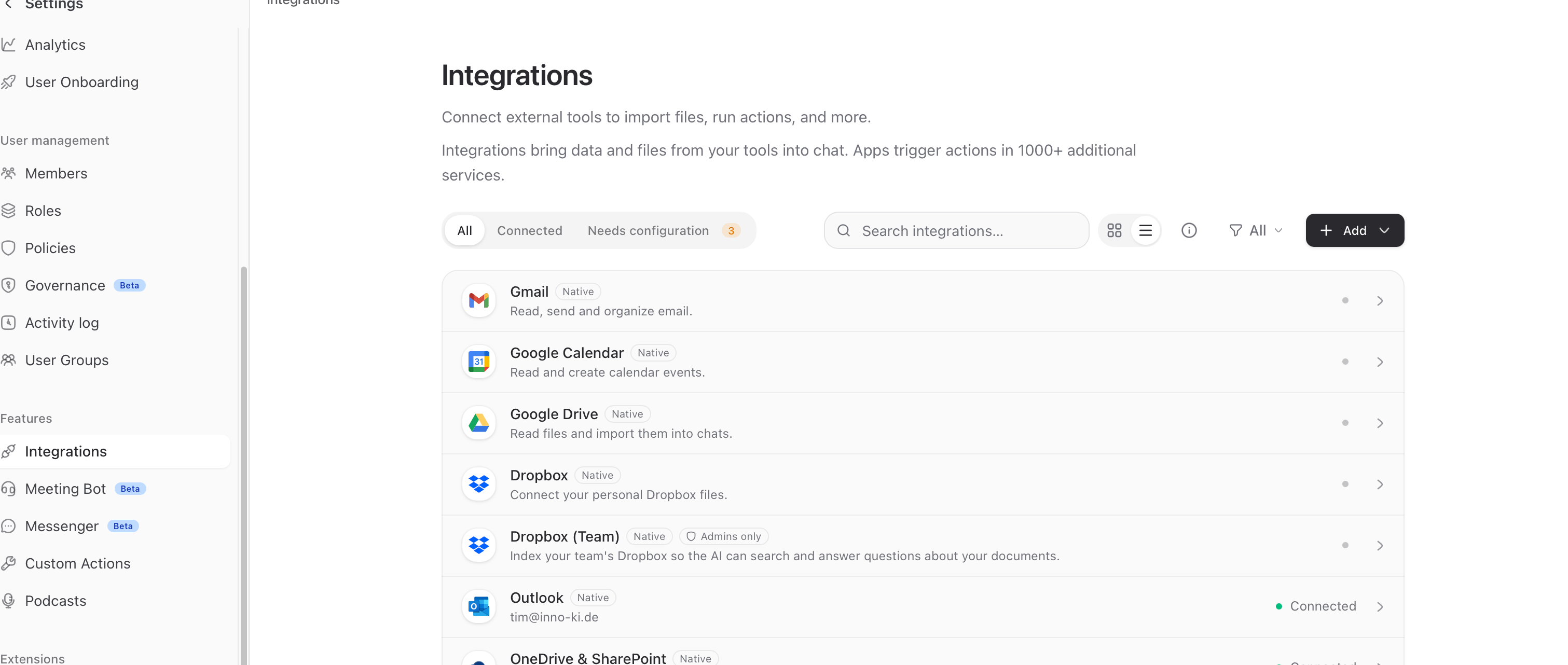
1. Open the Integrations page
Click on your Workspace profile in the top left → Settings → Integrations.
2. Select an app
Search the list for the desired app (e.g., Outlook, SharePoint, Google Drive) and click Connect.
3. Complete the OAuth login
You will be redirected to the provider’s login page. There:
Sign in with your account on the target service
Review the requested permissions (e.g., "Read emails," "Edit calendar")
Click Agree / Allow
You will then be automatically redirected back to innoGPT.
For some integrations, such as Outlook or Microsoft Teams, a system admin is notified, and the user initially receives a failure message. However, as soon as the admin accepts the connection, the app will work
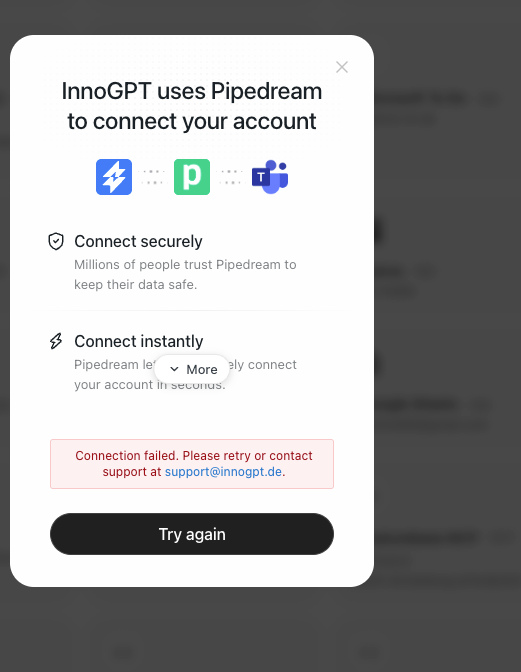
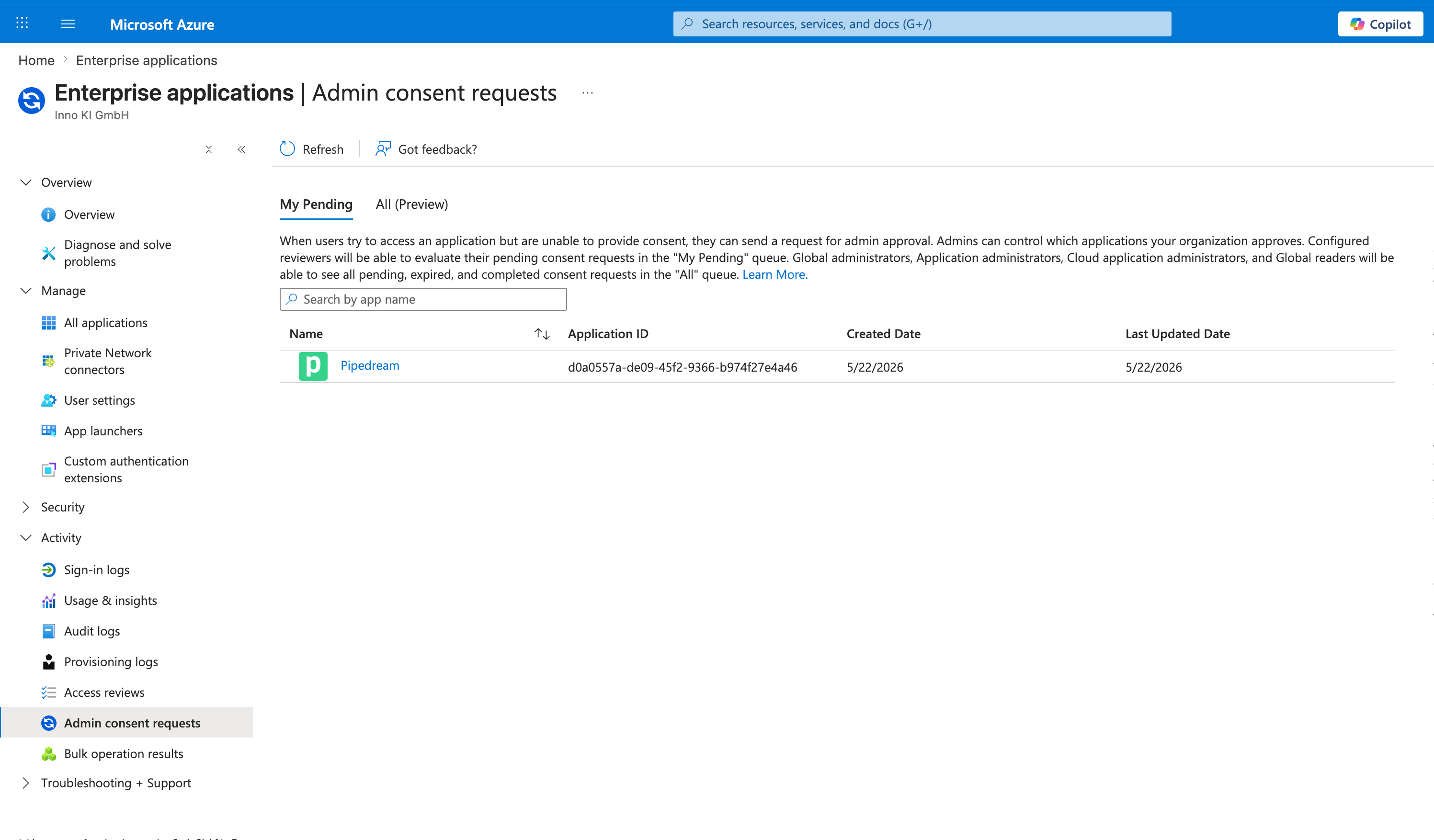
3.1 Admin approval of the app:
4. Check connection
On the integration page, you will now see a green "Connected" label. If not: see Troubleshooting below.
5. Use the integration in chat or the assistant
In chat: Load apps into the chat via the + icon or add them using @
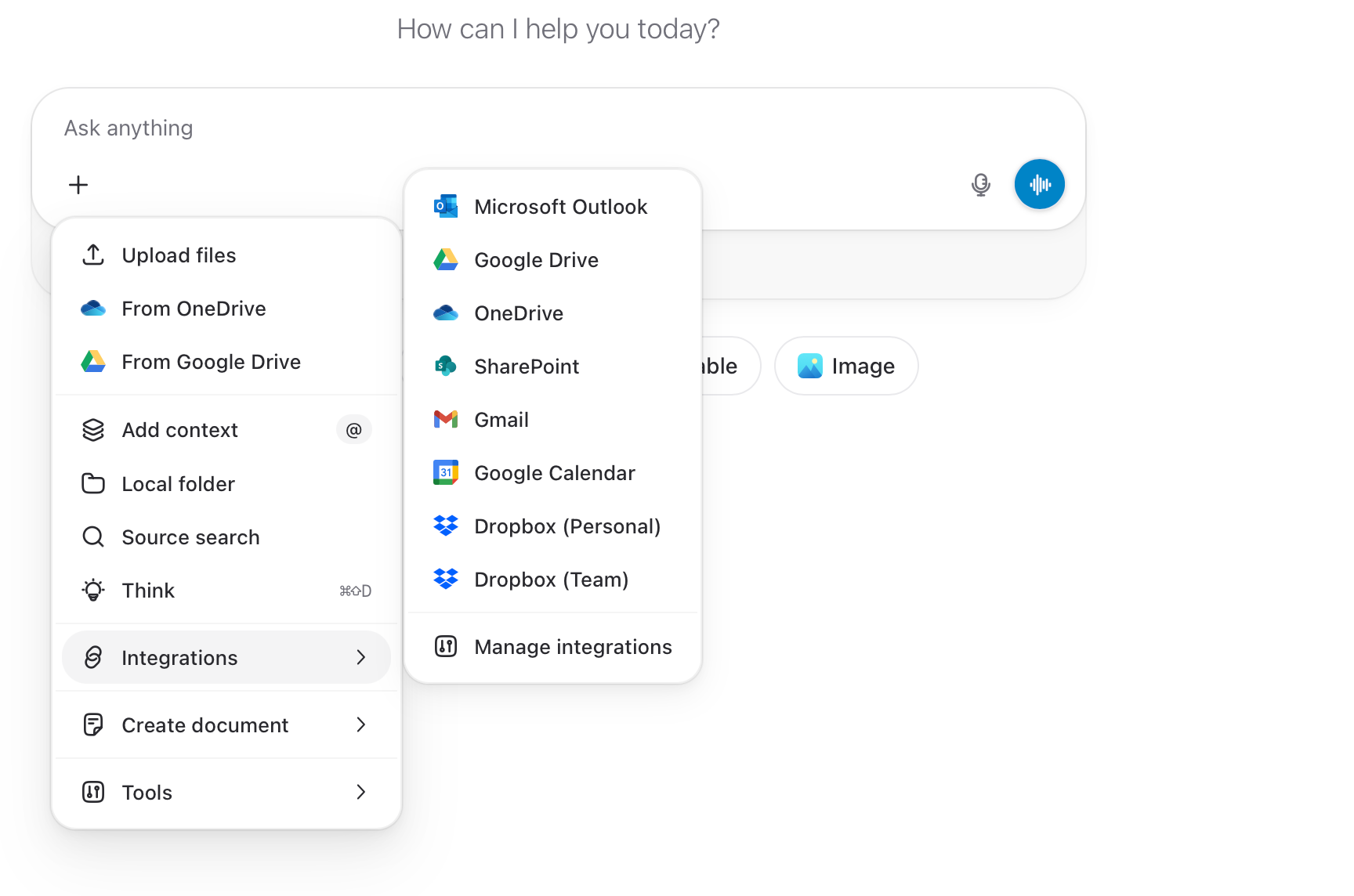
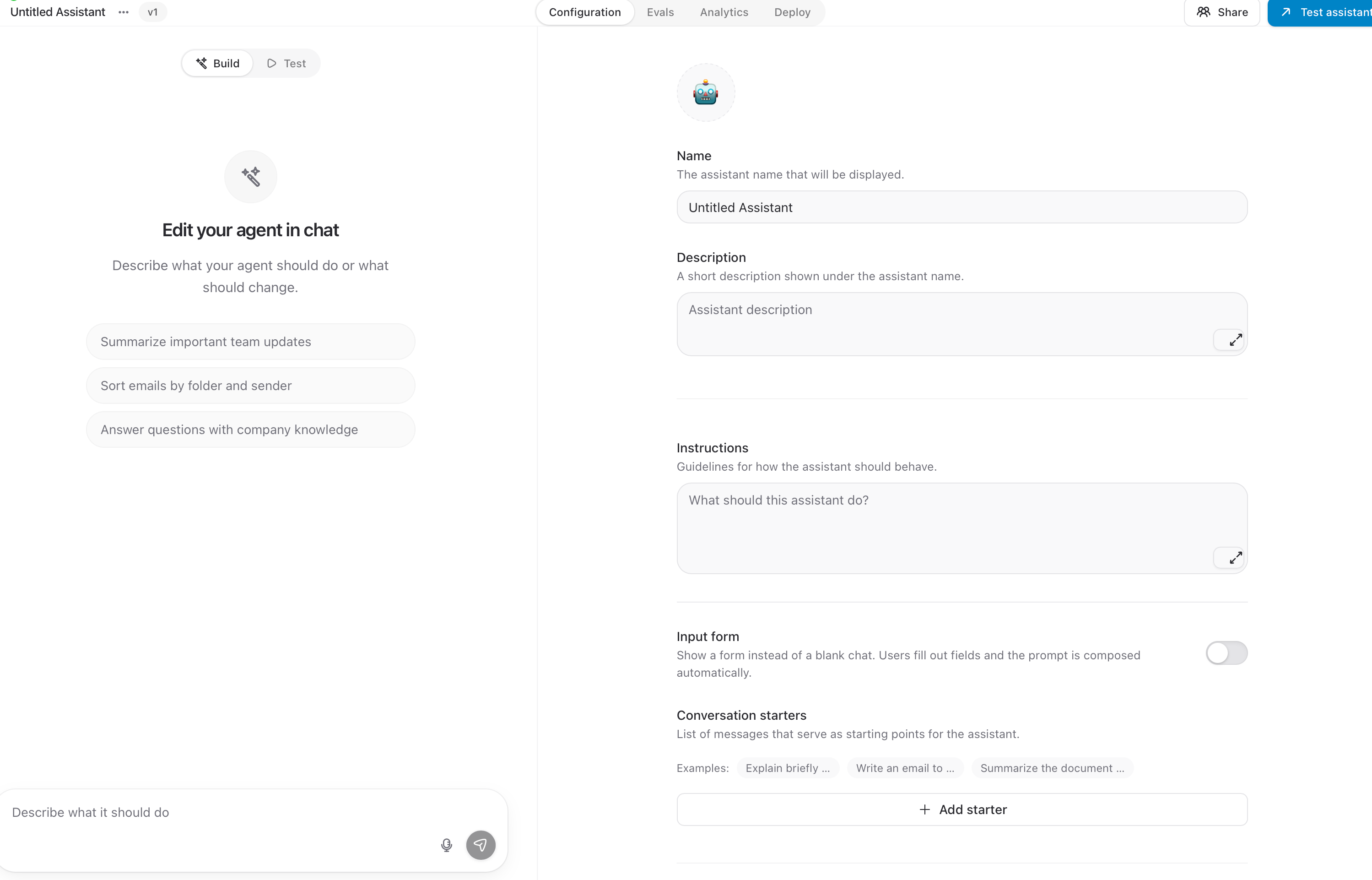
In the Assistant: via Add Apps; however, the connection in the Assistant will only work once OAuth has been completed:
🔐 What is OAuth and why does innoGPT use it?
OAuth 2.0 is the industry standard for secure app connections. Here’s how it works in simple terms:
In innoGPT, click “Connect”.
You will be redirected to the provider, such as Microsoft.
Log in with the provider. innoGPT will NEVER see your password.
Approve the requested permissions.
The provider gives innoGPT a “token”, which is a kind of key.
innoGPT uses this token to retrieve data on your behalf.
🛡️ Admin approval at Microsoft & Co. (Tenant Consent)
For many enterprise tools—especially Microsoft 365 (Outlook, SharePoint, Teams)—your personal login alone isn’t enough. Your IT admin must also approve innoGPT at the tenant level before regular users can connect the app.
How can you tell if admin approval is required?
During OAuth login, you’ll see a message like:
"Need admin approval"
"Approval required"
"Ein Administrator muss diese App zur Verwendung freigeben."
Here’s how to obtain approval
Take a screenshot of the message
Contact your IT admin or Microsoft 365 global admin
Include the following information:
Hi \[Admin Name\],

I would like to connect innoGPT to our Microsoft account, but I need your admin approval in the tenant.

Please approve the “innoGPT” app in the Azure portal under:
Azure Active Directory → Enterprise Applications → innoGPT

Background: innoGPT is our AI platform for \[use case\]. It processes all data in compliance with the GDPR within the EU and uses only the Microsoft Graph API with OAuth 2.0.

If you have any security-related questions, please contact: support@innogpt.de

Thank you!

\[Your Name\]
ℹ️ For admins: Authorization is granted once in the Azure portal → Enterprise Applications. After that, all authorized users in the tenant can connect the integration on their own—without further admin approvals.
For Google Workspace
Admin approval may also be required for Google Workspace if your admin has configured OAuth app management with restrictions. The admin can find the approval option under:
Google Admin Console → Security → API →
App
🔄 Manage connection
Token expired / Re-authentication
Depending on the provider, OAuth tokens expire every 30–90 days. If innoGPT reports that re-authentication is required:
Settings → Integrations → select the affected app
Click Reconnect
Go through the OAuth login process again
Completely disconnect the integration
Settings → Integrations → Select the app
Click Disconnect and confirm
Optional: Revoke the token with the provider as well (e.g., Microsoft → Account settings → Apps and services)
🛠️ Common Issues & Solutions
“Need admin approval”
→ Cause: Your tenant does not allow self-service connection for external apps. → Solution: Send the admin request template above to your IT admin.
“Login works, but connection remains yellow/red”
→ Cause: Permissions were not fully granted or the callback was interrupted. → Solution:
Disconnect and reconnect
In the OAuth dialog, approve all requested permissions
Disable pop-up blockers in your browser
"Token expired" / "Re-authentication required"
→ Cause: Normal token expiration (every 30–90 days) or password change at the provider. → Solution: Click "Reconnect" and go through the OAuth flow again.
“App is not visible in integrations”
→ Cause: The workspace admin has not yet enabled the integration. → Solution: Contact the workspace admin or Contact support.
“Login fails with ‘access_denied’”
→ Cause: You canceled the OAuth dialog or denied a permission. → Solution: Restart the connection process and agree to all permissions.
“Connection successful, but no data visible”
→ Cause: Missing license with the provider or restricted permissions. → Solution:
Check whether your account is active and licensed with the target service
For Microsoft: Does your account have access to the relevant feature (e.g., SharePoint site, mailbox)?
For restricted OAuth scopes: Re-establish the connection and grant more permissions
"Browser redirection fails / gets stuck"
→ Cause: Pop-up blocker, strict cookie settings, or VPN issues. → Solution:
Allow pop-ups for innoGPT in your browser
Temporarily allow third-party cookies
Disable VPN if necessary and try again
Try alternative browsers (Chrome, Edge, Firefox)
“It works for me, but not for my colleagues”
→ Cause: Different license levels or missing tenant authorization for certain user groups. → Solution: Check with your IT admin whether app authorization in the tenant is active for all users or only for specific groups.
🚀 Next steps
📧 Connect Outlook: Outlook-Integration in innoGPT einrichten
📂 Connect SharePoint: SharePoint-Integration in innoGPT
🔌 Connect MCP server: MCP server
💬 Connection not working?
Stuck on "Connect" or missing a specific app from the list? Write to us — we’ll help you out quickly or forward your request to your admin.
Was this helpful?
Still need help? Ask the team