Photo Studio
The Photo Studio from innoGPT allows you to create and edit images using AI models. Whether you want to create a unique design or optimize existing images, the intuitive interface and versatile features make it easy to bring your creative vision to life.
Steps for Using the innoGPT Photo Studio
1. Generate an image
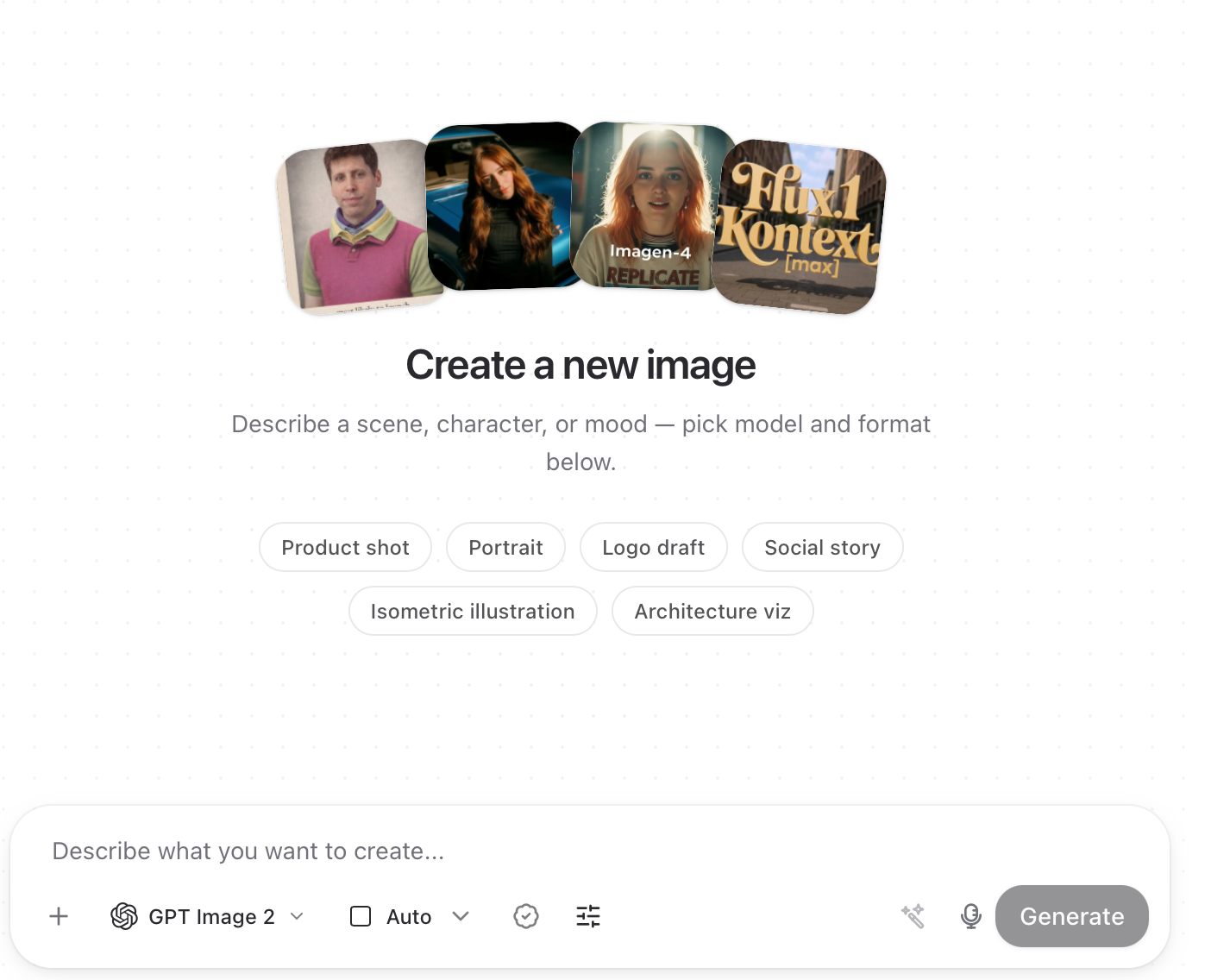
Get started: Open the Photo Studio and select the "Generate" tab.
Select a model: Choose an AI model (e.g., GPT Image 1). Different models offer various features and image styles.
Enter description: In the “Describe your image” field, enter what your desired image should look like (e.g., “Sunset on the beach with palm trees”).
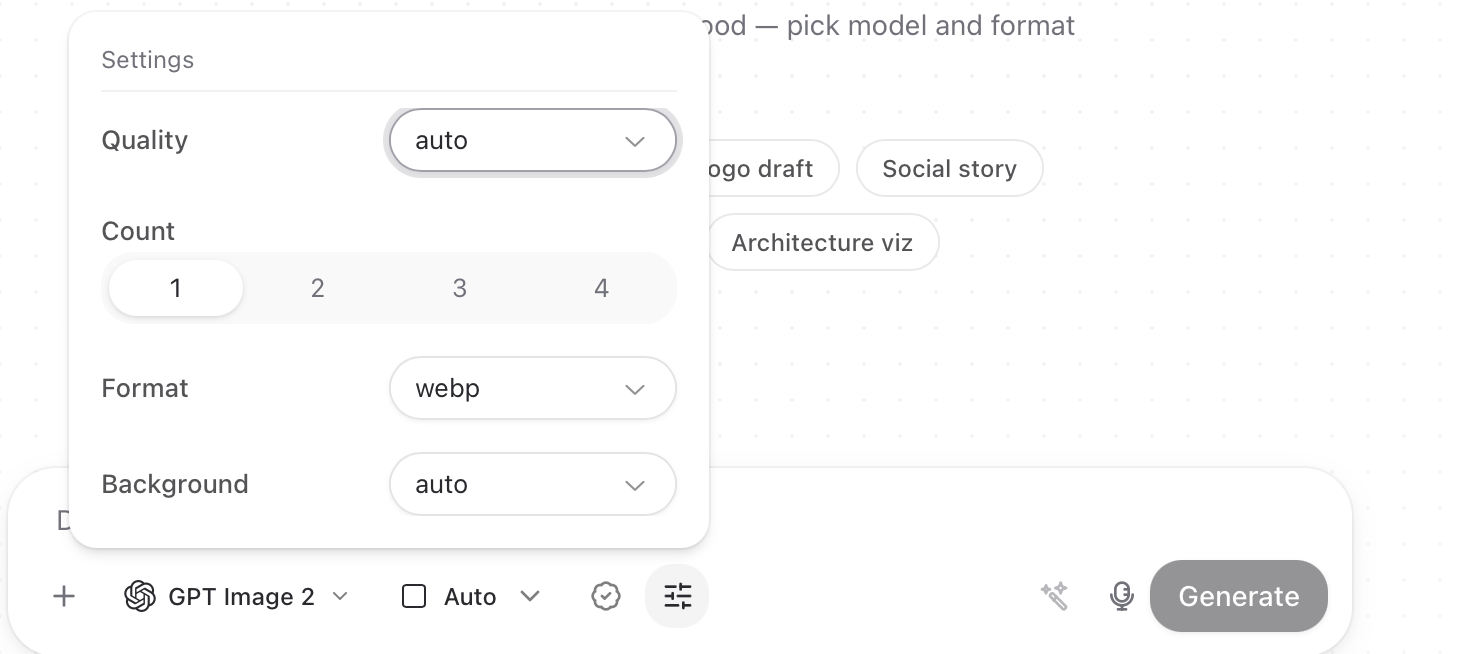
Customize options: In the “Advanced Settings” section, you can individually adjust parameters such as size, quality, or background.
Generate: Click "Generate" to let the AI create the image. Your finished image will appear in the preview on the right.
2. Edit image
Start: Select the “Edit” tab from the libary or upload a reference image
Upload reference image: Upload an image you want to edit, or select one from your library. (Note: If you generated a new image previously and then click Edit, the generated image will be applied directly)
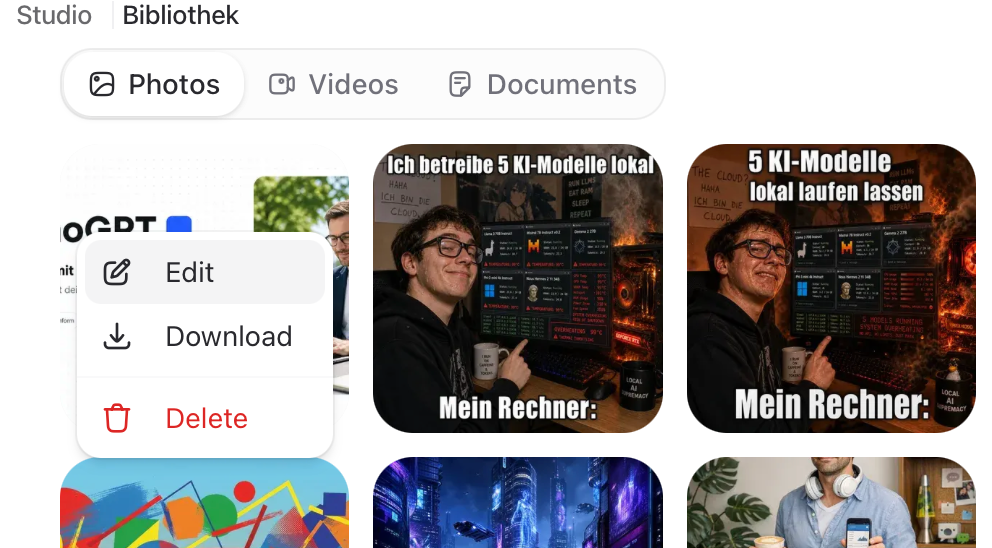
Enter editing description: Describe the changes you want to make (e.g., “Make the sky bluer” or “Add text”).
Use optional mask: Upload a mask image to edit specific areas of your image.
Use advanced settings: Adjust parameters such as image size or quality as needed.
3. Understanding Advanced Settings
Note: These settings depend on the selected model.
Size: Specify how large you want your image to be (e.g., “Standard” or custom dimensions).
Quality: Choose between standard quality or higher resolution, depending on your needs.
Output Format: Customize the final output format (e.g., PNG, JPEG).
Background: Decide whether your image should be created with a transparent or colored background.
EU AI Act Labeling
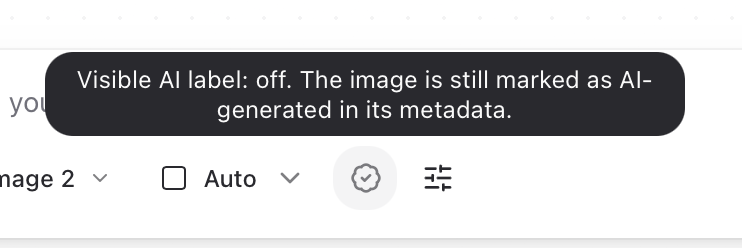
The EU AI Act requires AI-generated and AI-modified content to be recognisable as such. innoGPT ships this straight into the Photo Studio, so you can label images inside your workflow instead of chasing external tools.
In short: every image you generate or edit in the Photo Studio can carry the official EU icon for AI content, visible on the image and written into the file metadata for full traceability.
Why this matters
Under the EU AI Act, providers and deployers of generative AI must make it clear when content was created or altered by AI. That applies to marketing visuals, social posts, presentations, print, basically everything you push out of innoGPT.
Instead of building your own watermark or bolting on a plugin, innoGPT uses the official EU icons:
One icon for images created entirely with AI
One icon for images that were edited with AI
Same iconography across the workspace, same look for every colleague, no case-by-case discussions.
The three modes (admins decide)
How labelling behaves in your workspace is a central setting. Your workspace admin picks one of three modes:
Off Labelling is disabled. This is the default when you start.
Always on Every AI image is labelled automatically. Nobody can forget it.
Optional A toggle in the Photo Studio lets each user turn labelling on or off per image.
Tip for admins: if your company already publishes AI-generated content externally, Always on is the safest choice. It removes the "did I forget the label?" question from your team's daily workflow.
How to label an image
1. Open the Photo Studio In the sidebar, click Studio → Photo Studio.
2. Generate or edit your image
Generate tab: describe the image, pick a model, hit Generate.
Edit tab: upload or reuse an image, describe the change, hit Edit.
3. Set the EU label (if your workspace is in Optional mode) In the Photo Studio you'll see a label toggle. Switch it on for images you want to mark as AI-generated or AI-edited. If your workspace is set to Always on, this happens automatically, no click needed.
4. Download or share The label is baked into the exported image. In parallel, innoGPT writes the AI-content information into the image file's metadata, so the provenance travels with the file even if the visual icon gets cropped.
What gets labelled
Labelling applies to both workflows in the Photo Studio:
Images generated from scratch via the Generate tab
Images edited with AI via the Edit tab
Whether you started from a blank prompt or from an uploaded reference, the correct EU icon is applied.
Visible on the image, anchored in the file
Two layers of transparency work together:
Visual label: the official EU icon is placed on the image itself.
Metadata: the same information is written into the file's metadata automatically.
That way you're covered when the image is shared, when it's uploaded to a CMS, and when someone downstream inspects the file properties.
Pro Tip for Beginners🪄
Try out different templates and descriptions to get a feel for the possibilities. Each template offers different styles and results—experiment to find the best one for your project!
Photo Studio is your toolbox for creative image ideas—intuitive, powerful, and flexible. Give it a try and let your creativity run wild!
Was this helpful?
Still need help? Ask the team