Set up Outlook integration in innoGPT
Connect your Microsoft Outlook account to innoGPT and manage your emails and calendar appointments right in the chat—without having to switch tools.
💡 What you’ll be able to do after reading this article: Search, read, reply to, and draft emails, as well as schedule calendar appointments—all via chat prompts.
✅ Prerequisites
Before you get started, you’ll need:
An active Microsoft account (personal, Microsoft 365 Business, or Enterprise)
Permission from your Workspace admin to enable integrations
Optional: Admin approval in your Microsoft 365 tenant, if your IT department needs to centrally approve OAuth apps
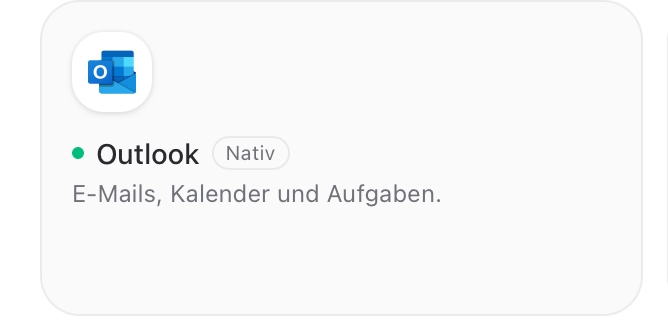
Make sure to use the Outlook or Gmail integration labeled “native”:
🔌 Step-by-step: Connect Outlook
1. Open the Integrations page
Click on your Workspace profile in the top left → Settings → Integrations (or Connectors).
2. Select Outlook
Search the list for Microsoft Outlook and click Connect.
3. Log in to Microsoft
You will be redirected to the Microsoft login page. Sign in with the account whose emails and calendar you want to use in innoGPT. An IT admin may need to confirm the request.
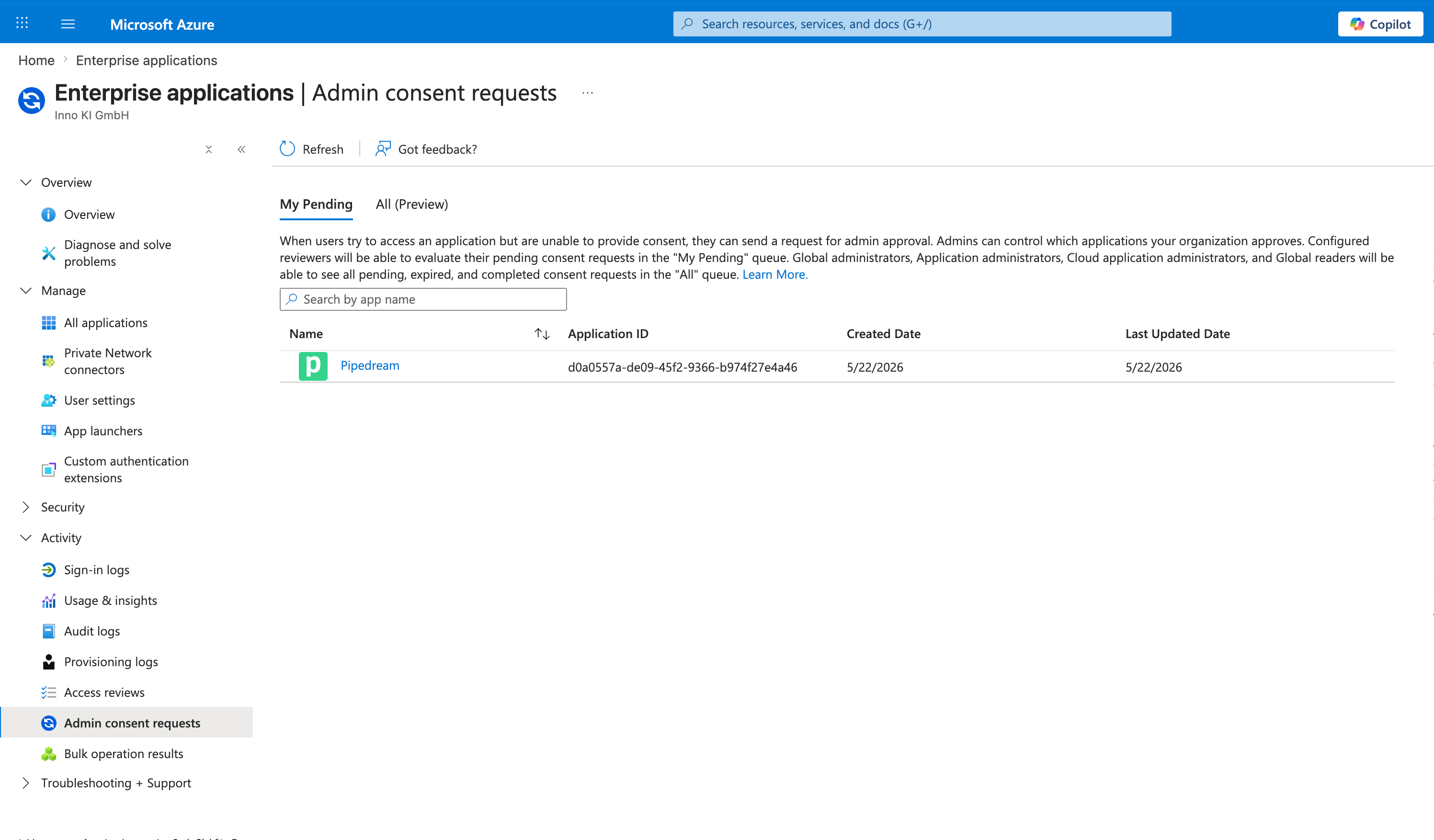
4. Admin confirmation
For some integrations, such as Outlook or Microsoft Teams, a system admin is notified, and the user initially receives a failure message. However, once the admin has accepted the connection, the app will work
Grant permissions
Microsoft will ask you what access permissions innoGPT should have:
✅ Read and search emails
✅ Create email drafts
✅ Read and create calendar appointments
⚠️ Important: Confirm all requested permissions. If you deny any of them, certain features won’t work.
5. Check connection
After successful authentication, you’ll see a green “Connected” label on the integration page. You can get started right away.
💬 What you can do in the chat
Just tell innoGPT what you need in natural language. Here are a few tried-and-true prompts:
📥 Search and read emails
Show me all emails.

What did [sender name] write to me in the latest email from [date]?

Find all emails containing the keyword “Contract Q4” in my inbox.
✍️ Create email drafts
Create a draft reply to Marlon’s latest email.

Confirm the appointment on Friday at 2:00 p.m. and ask for the agenda.


Write a draft email to [recipient@example.com] with the subject line “innoGPT Enterprise Proposal”. Briefly introduce our product and suggest a demo appointment next week.
📅 Manage your calendar
This is especially handy in the innoGPT app on your smartphone when you don’t want to open your laptop.
What’s on my calendar tomorrow?
Create an event titled “Strategy Meeting” on Thursday from 3:00 to 4:00 p.m., with Marlon and Lisa as participants.Find available slots for a 30-minute meeting next week between 9:00 a.m. and 5:00 p.m.
ℹ️ Tip: The more precise your prompt (sender, time period, keyword), the better the result.
⚙️ Important to know
📤 Emails are not sent automatically
For security reasons, innoGPT only creates drafts. You’ll find them directly in the Drafts folder of your Outlook inbox, where you can review, edit, and send them manually.
🔒 Data Protection & GDPR
All access is routed through the official Microsoft Graph API
innoGPT does not permanently store any email content
The connection uses OAuth 2.0 — innoGPT never sees your password
All data flows are GDPR-compliant and are processed within the EU
🔄 Disconnect or re-authenticate
Here’s how to disconnect Outlook at any time:
Workspace Profile → Settings → Integrations
Click Disconnect next to Microsoft Outlook
Confirm
If innoGPT reports that the connection has expired, simply click Reconnect — this happens approximately every 90 days because Microsoft renews the tokens on a regular basis.
🛠️ Common Issues & Solutions
“Outlook isn’t visible in the integrations”
→ Your Workspace admin hasn’t enabled the integration yet. Talk to them or contact our Support.
“Microsoft is denying login”
→ Your IT department may need to approve innoGPT as a trusted app in the Microsoft 365 tenant. Send your IT team this article and the Microsoft App ID, which we provide upon request.
“Token expired / Re-authentication required”
→ This is normal after prolonged inactivity or a password change. Simply click "Reconnect" under Settings → Integrations → Outlook.
“innoGPT cannot find certain emails”
→ Check that you’re logged into the correct mailbox. If you have multiple accounts, you’ll need to set up the integration separately for each account. innoGPT typically only loads the latest 50 emails unless you’re searching for a specific keyword.
🚀 Next steps
📅 Discover calendar integration: Use Outlook calendar in innoGPT
🤖 Build your own assistants that automatically analyze emails: Assistant Guide
🔗 More integrations: Gmail, Google Calendar, SharePoint
💬 Feedback or issues?
Is something not working as expected? Write to us or leave a comment — we’re constantly improving this article.
Was this helpful?
Still need help? Ask the team