MCP server
Give InnoGPT superpowers by connecting your external tools - with these instructions, it only takes a few minutes.
What is the Model Context Protocol (MCP)?
MCP stands for Model Context Protocol. It is an open standard that acts as a universal bridge between InnoGPT and your external tools (such as project management software, CRM systems, etc.).
Think of it this way: MCP gives the AI “superpowers” by teaching it how to communicate with the APIs of other programs. Once a connection is established via MCP, the AI can perform actions in these tools directly from the chat—for example, create a new ticket in Jira, retrieve customer data from Salesforce, or create a to-do list in Asana.
How to connect an MCP server inInnoGPT
Setup is straightforward. Just follow these steps:
✅ Prerequisites
Before you get started, you’ll need:
An innoGPT account with permission to set up integrations - Settings - Roles - Permissions
The connection details of the MCP server (URL, authentication credentials or API key if applicable)
For your own MCP servers: a working MCP server endpoint (SSE or HTTP)
Here you’ll find a collection of MCP servers: Awesome MCP
🔧 Step-by-step: Setting up the MCP server
1. Open the Integrations page
Click on your Workspace profile in the top left corner → Settings → Integrations.

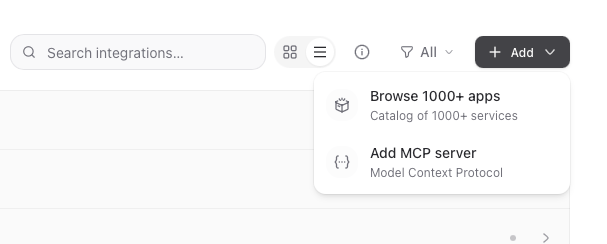
2. Add MCP server
Click Add Integration and select MCP Server from the list.
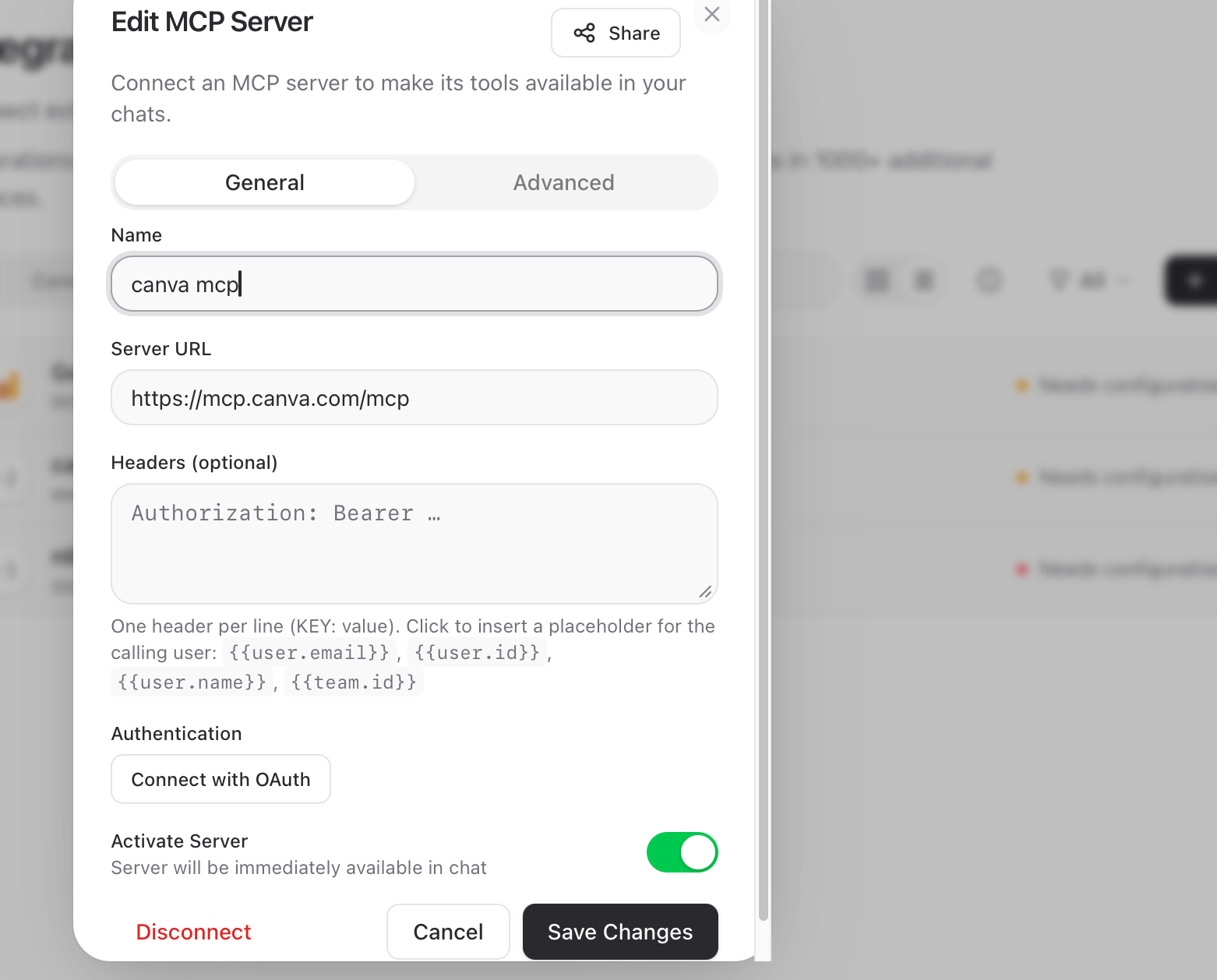
3. Configure the server
Enter the connection details:
Name — what should the server be called in the chat? (e.g., “Featurebase,” “Jira,” “Internal Wiki”)
Server URL — the endpoint of your MCP server
Transport type — usually SSE (Server-Sent Events) or HTTP
Authentication — depending on the server: OAuth, API key, bearer token, or none
Example URL (SSE):
https://mcp.dein-tool.com/sse

Example-Header (Bearer Token):
Authorization: Bearer dein-api-key
4. Authenticate
Click Authenticate to complete the connection with OAuth.
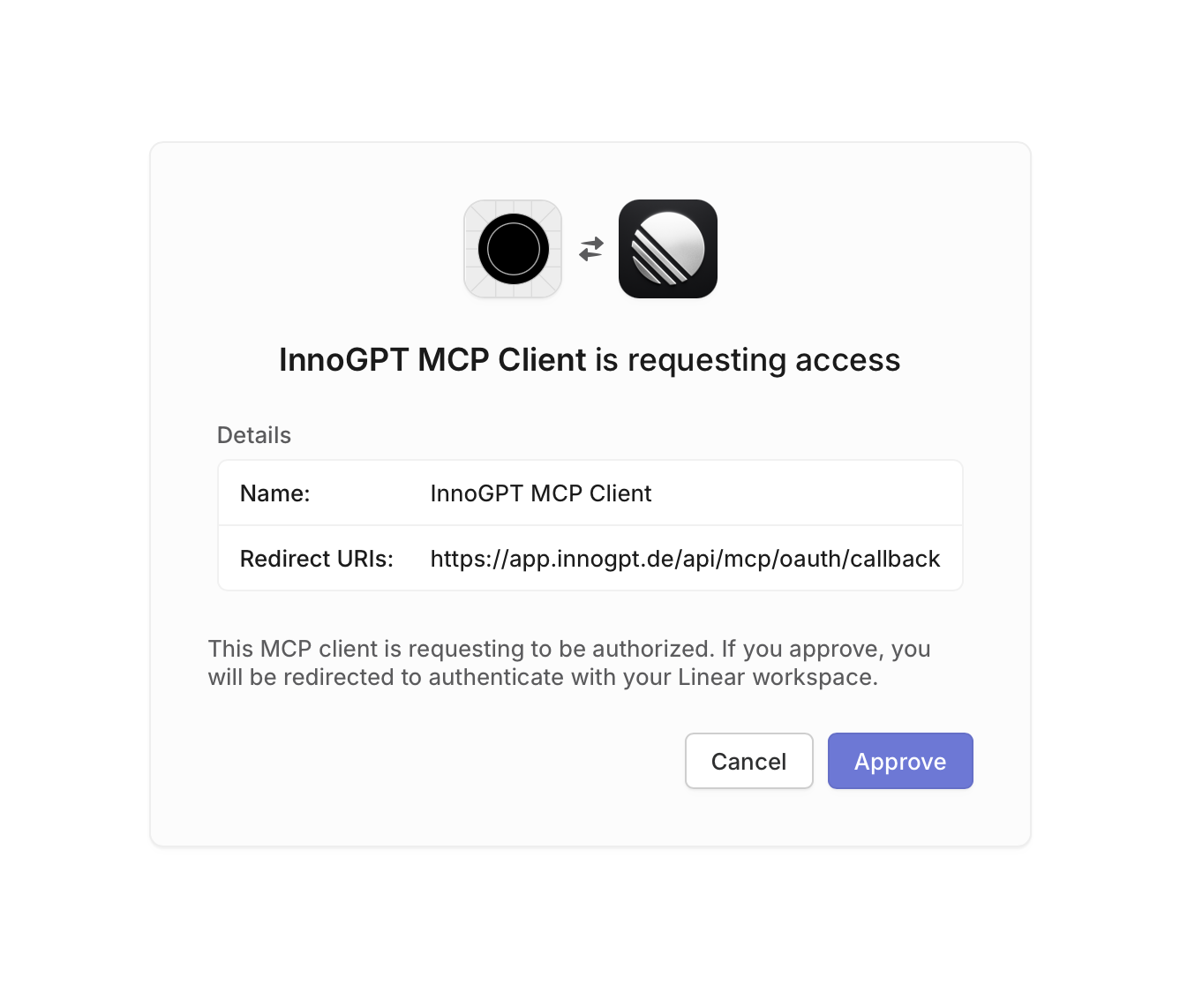
Step 4: Authorize access in the external tool
You will now be redirected to the external service (in this example, Linear). Confirm the connection request by clicking "Approve" (or a similar button) to grant access to InnoGPT.
Step 5: Connection confirmed
After successful approval, you will be redirected back to InnoGPT. The server will now be displayed with a green dot and the status "OAuth connected." Your integration is now active and ready to use.

To use your connected tool, start a new chat.
Step 6: Enable and use the MCP server in the chat
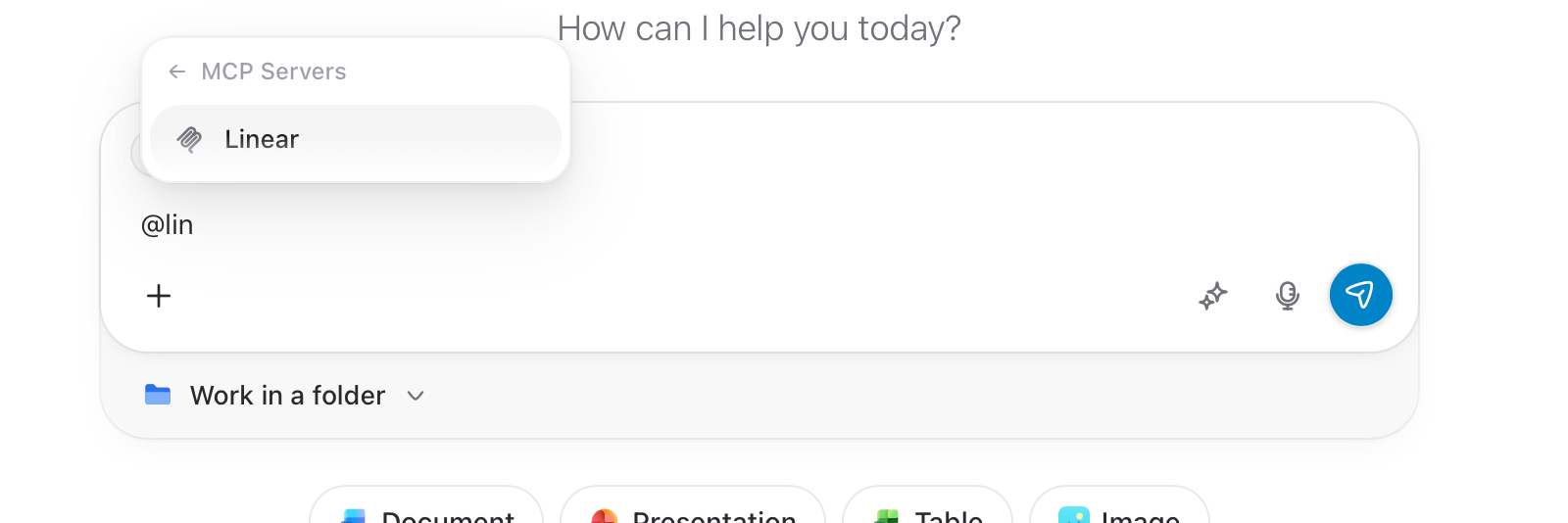
Click the MCP icon (the crossed lines) in the input bar
Activate the desired server (e.g., "Linear") using the toggle.
Now enter a command in natural language, e.g., "Show me the 5 latest issues in Linear." The AI will now use the tool to process your request and display the result directly in the chat.
✅ Check connection
⚠️ Important: After configuration, you must always check that the connection is working before using the MCP server in chat or in assistants.
Here’s how to test the connection:
On the Integrations page, select the configured MCP server
Check the status icon:
Only when the status is green will the MCP server tools actually be available in the chat and in your assistants.
💬 Use MCP in the chat or assistant
Once the connection is established, you have two options for using the MCP server:
Option A: In the regular chat
The MCP tools are automatically available. Just ask in natural language; it’s best to add the server again using @ so the AI knows the context.
Zeig mir alle offenen Posts in Featurebase aus den letzten 7 Tagen.
Erstelle in Jira ein neues Ticket: "Login-Bug auf Mobile"
mit Priorität "Hoch".
innoGPT It automatically recognizes which MCP tool is appropriate and calls it up.
Option B: In a bot
Here’s how to permanently integrate MCP into a wizard:
Create a wizard or open an existing wizard
In the Tools / Integrations section, enable the desired MCP server
Optional: Specify in the instructions when the wizard should use the tool
Save and test
💡 Tip: For specific use cases (e.g., “Process support tickets”), it’s worth creating a dedicated assistant with only the MCP tools it actually needs. This makes it more focused and reliable—be careful not to load prompts from an MCP server into innoGPT that could lead to unwanted behavior—keyword: prompt injection.
🔄 Re-authenticate or disconnect the connection
Token expired?
OAuth tokens expire every 30–90 days, depending on the provider. If innoGPT reports that authentication is required again:
Settings → Integrations → Select MCP Server
Click Reconnect
Go through the login flow
Test the connection again (see above)
Disconnect integration
Settings → Integrations → Select MCP Server
Click "Disconnect"
Confirm
🛠️ Common Issues & Solutions
"Server requires authentication"
→ The MCP server is set up, but the OAuth flow was not completed. Go to the integration settings and click on Authenticate.
“MCP tools don’t appear in chat”
→ Check three things:
Is the integration status green (connected)?
In the Assistant: Are the MCP tools enabled in the Assistant setup?
Did you reload the chat after activation?
Sometimes connections are only valid for 1–2 days and need to be reactivated
“Connection test failed”
→ Common causes:
Incorrect URL (often
/sseis missing at the end)API key expired or invalid
MCP server itself is down — check with the provider briefly
Firewall/network is blocking the connection (for on-premise servers)
"Tool is called, but an error is returned"
→ Usually an authorization issue on the target system side. Check if the connected account has the necessary permissions (Read/Write/Admin).
🚀 Next steps
🤖 Build your own wizard with MCP integration.
🔗 Discover more integrations: Overview of all connectors
📚 Learn more about the Model Context Protocol: Official MCP documentation
Was this helpful?
Still need help? Ask the team