Using Local Files &Folders in innoGPT
With local files, you can access files and folders on your own device directly from a chat without having to upload them first. innoGPT then reads from (and, if desired, writes to) the folder you've shared.
Note: Local files work exclusively on your device in the desktop app. Other members of your workspace cannot see your shared folders.
How local files work
Access to local files operates on two levels:
Workspace level: Your admin decides which members are allowed to use the feature at all.
Device level: You then select the folders on your computer that innoGPT is allowed to access and set the permissions (read or read & write).
Only once both levels are set up will the “Work in a Folder” option appear in a new chat.
The desktop app is required; you can download it here: https://app.innogpt.de/download
Step 1: Enable members in the workspace (Admin)
In order for users to be able to use local files at all, an admin must first enable the feature for the respective members.
Open the workspace settings.
Navigate to the section for local files.
Select the members who should have access to local files, and save your selection.
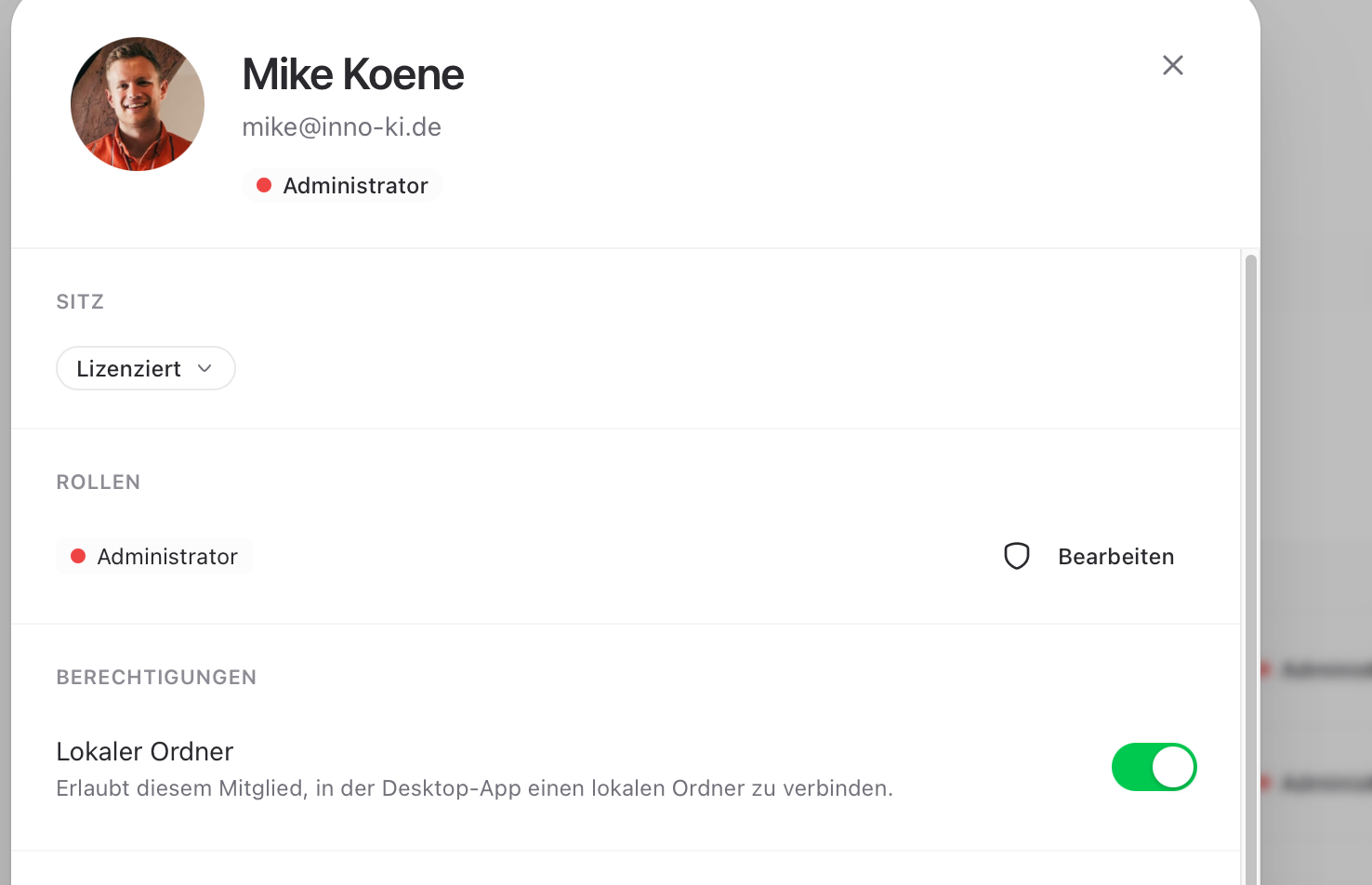
Important: Without this activation, the “Work in a folder” option in the chat will be grayed out or not visible at all for the affected users.
Step 2: Share a folder on your device
Once you’ve enabled this feature, you can choose which folders innoGPT can see on your device.
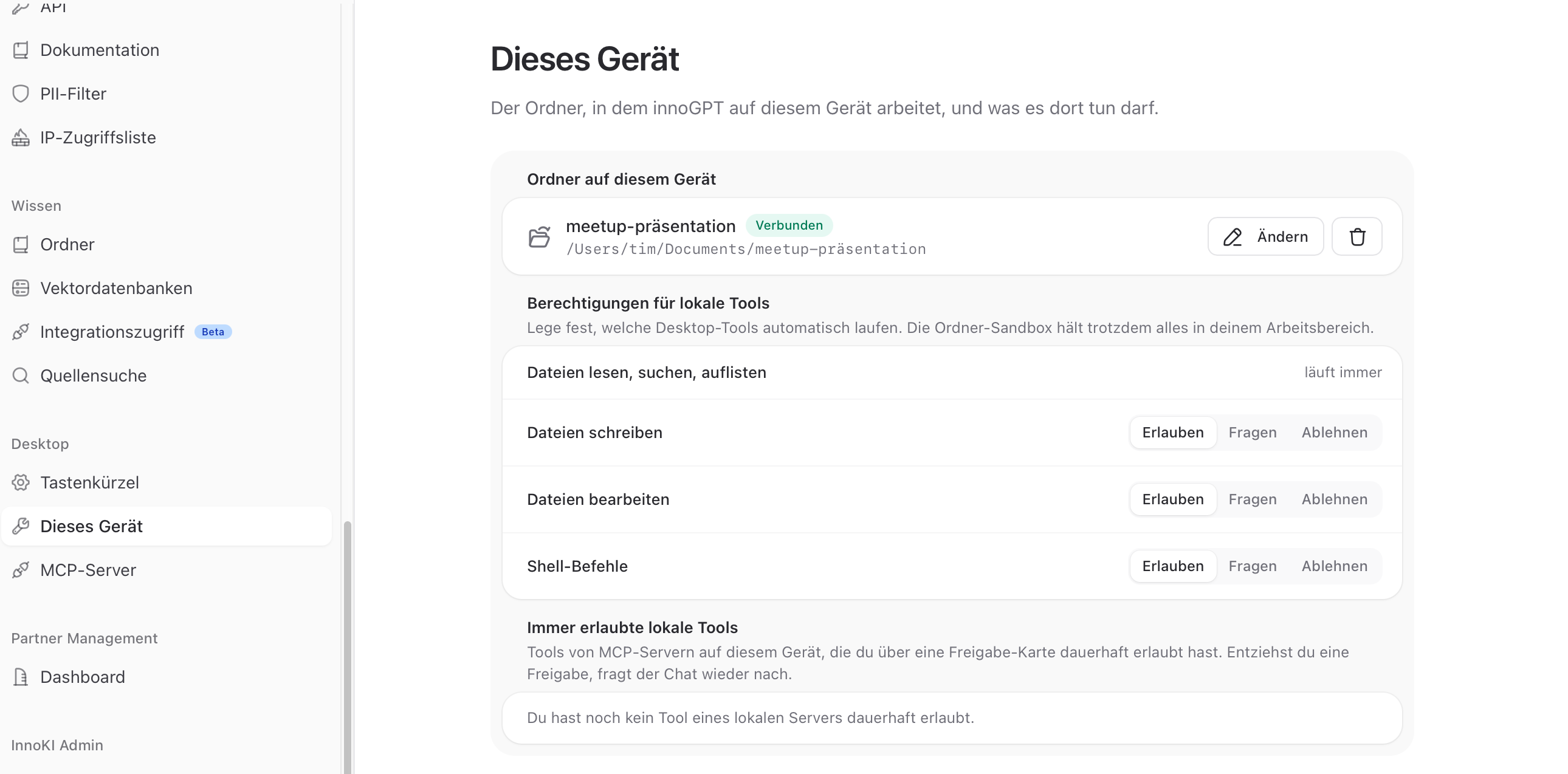
In Settings, open the “This Device” section.
Click “Add Folder” and select the desired folder on your computer.
Set the permissions for this folder:
Read-only: innoGPT can open and analyze the contents, but cannot make any changes.
Read & Write: innoGPT can also create, modify, or overwrite files in the folder.
Confirm your selection.
Tip: Start with "Read-only" if you're trying out this feature for the first time. You can grant write permissions at any time later.
You can set up multiple folders with different permissions, for example, a project folder with write permissions and a read-only archive.
Step 3: Working with a Folder in Chat
Now you can use the local files directly in the chat.
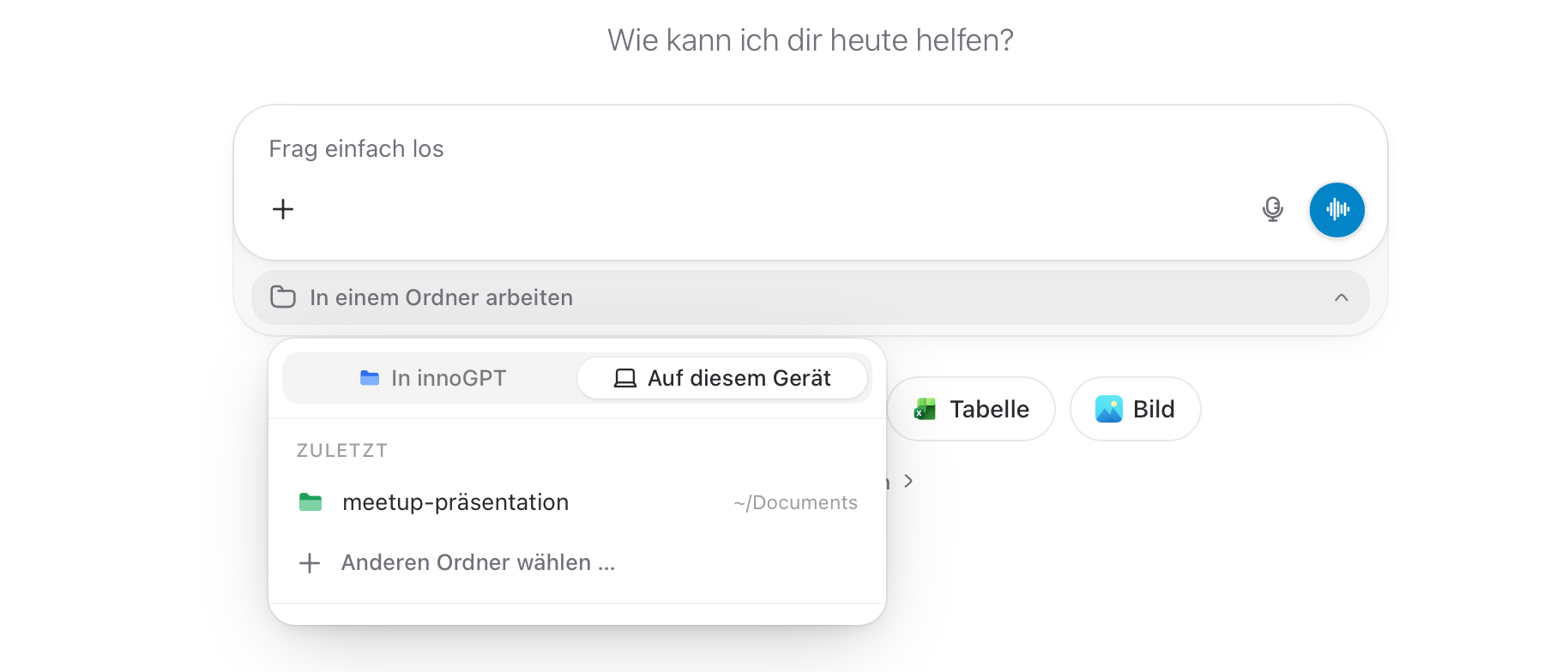
Open a new chat.
Click “Work in a Folder.”
Select one of your shared folders.
Ask your question or give your instruction, for example:
“Compile all the PDFs in this folder for me.”
“Create a new Excel file with the results.” (only with write permissions)
“Find all contracts that mention a right of termination.”
The chat treats the folder like a workspace: innoGPT knows all the files it contains and can search through them, analyze them, and—if permitted—even edit them.
Permissions at a Glance
Frequently Asked Questions
I don’t see “Work in a folder” in the chat. Why? Your Workspace admins haven’t enabled local files for you yet. Contact your admin so they can add you in the Workspace settings.
Do other members have access to my folders? No. Local folders are tied to your device and your user account. Shared folders are not synced or shared.
Can I remove a folder? Yes. In the settings under “This Device,” you can remove each folder individually or adjust the permissions.
What happens when I grant write permissions? innoGPT can then create, edit, or delete files in the folder—for example, save a revised Word document. Make sure you have a backup of important files first.
In summary: The admin approves you → you share folders on your device with the appropriate permissions → get started in the new chat using “Work in a Folder.”
Was this helpful?
Still need help? Ask the team