Manage profile
In the Profile section, you can set up your personal account on innoGPT—from your avatar to security settings and notifications. Here, you’ll learn where to find everything and how to configure your settings for optimal use in your daily routine.
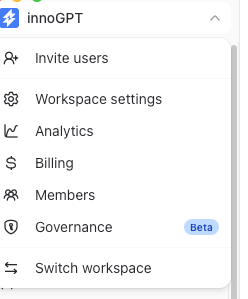
Click on your workspace in the top-left corner → Settings → Profile section
1. Profile:
Here you can manage your profile information, avatar, email addresses, language, and sounds.
Profile Settings:
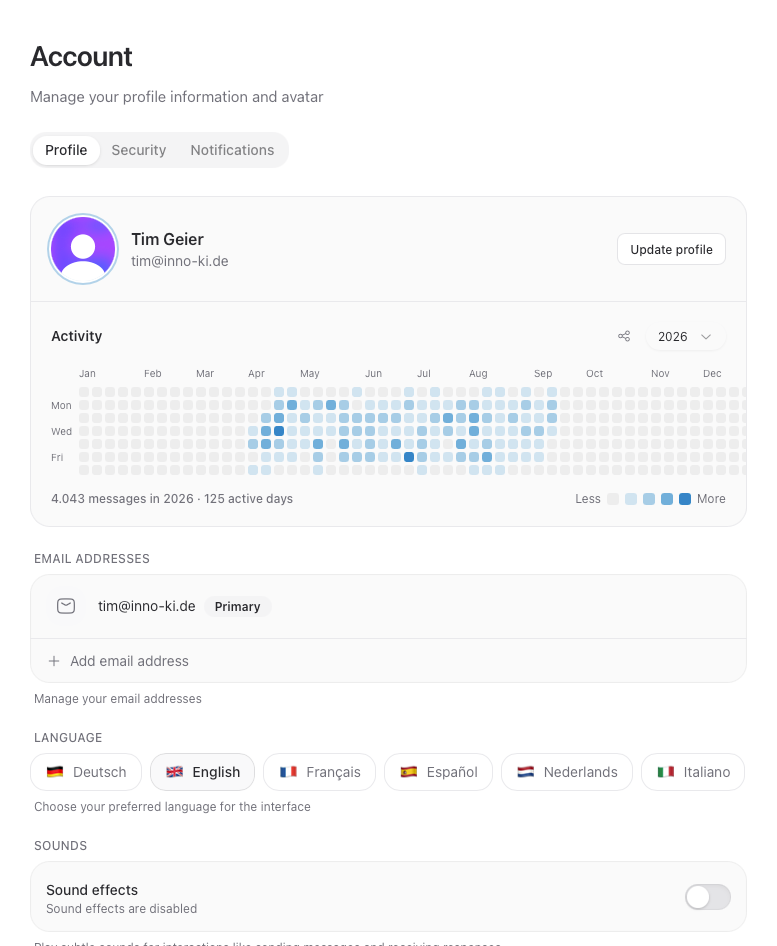
At the top, you’ll see your avatar, your name, and your primary email address. By clicking on Edit Profile, you can:
Upload or change your avatar
Customize your display name
Activity
Directly below the profile card, a heatmap shows how active you’ve been on innoGPT this year:
Green fields = active days (the darker the field, the more messages)
Year selector in the top right — compare yourself to previous years
Share icon — download or copy activity
Below the graph, you can see total messages and active days for the selected year
Practical tip: The activity overview is only visible to you — unless you explicitly share it.
Email addresses
You can add multiple email addresses to your account — handy if you’re invited using both your work and personal email.
The primary address is your main login address and is used for notifications
Link additional addresses via "Add email address"
Addresses can be marked as "Primary" or removed later
Language
Select the UI language for the innoGPT interface. Currently available:
German
English
French
Spanish
Dutch
Italiano
Note: The language selection only affects the UI. The AI models will continue to respond in the language you use to address them.
Sounds
Use the sound effects toggle to enable subtle sounds for interactions such as sending messages and receiving replies.
2. "Security" section
Here you can manage your password, active devices, and all matters related to account security.
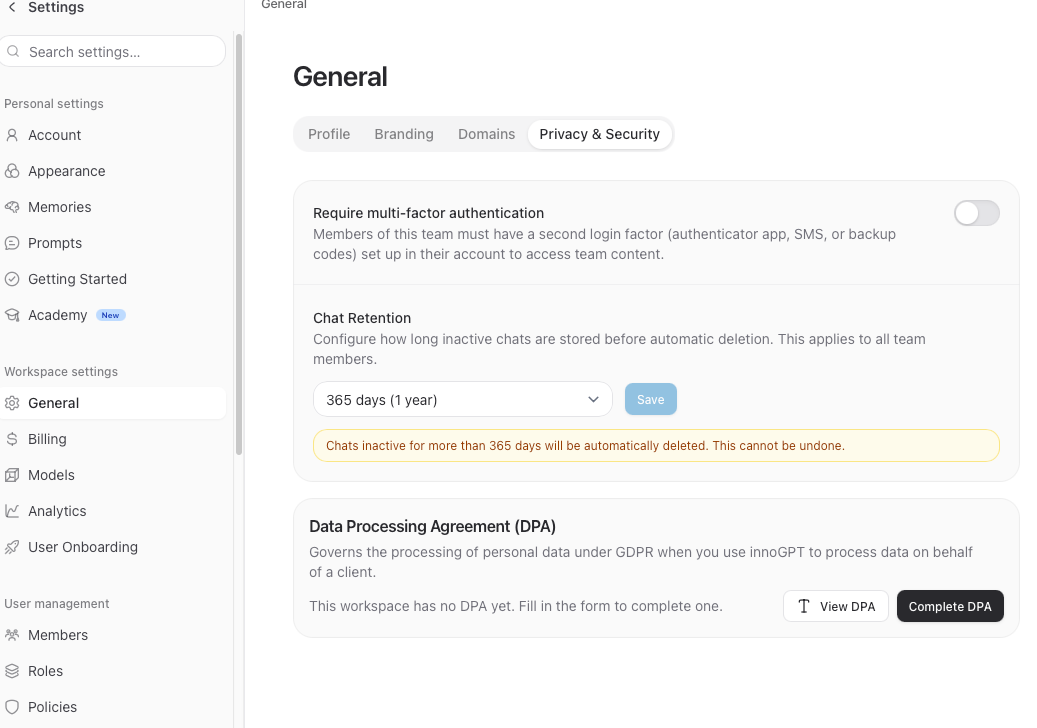
Password
Click on "Change Password" to set a new password. Recommendations:
At least 12 characters
Combination of uppercase and lowercase letters, numbers, and special characters
Use a password manager (e.g., 1Password, Bitwarden)
Two-factor authentication (2FA)
⚠️ Recommended for all business accounts!
With 2FA enabled, you’ll also need a code from your authenticator app (e.g., Google Authenticator, Authy, 1Password) when logging in.
The "Enabled" badge shows the current status
Regenerate codes — if you’ve misplaced your backup codes
Disable 2FA — only in exceptional cases
Backup codes: Immediately after enabling 2FA, you’ll receive backup codes — print them out or save them offline. They’re your lifeline if you lose your phone.
Passkeys
Passkeys allow password-free login using a fingerprint, Face ID, or a security key — safer and faster than passwords.
Add Passkey sets up a new passkey on your current device
Works on Mac (Touch ID), iPhone (Face ID), Android (fingerprint), and with hardware keys (e.g., YubiKey)
Why passkeys? They’re phishing-resistant—no one can steal a passkey from a fake email. If your device supports it, it’s worth making the switch.
Connected Accounts
Here you can see your linked social accounts and Single Sign-On (SSO) providers — e.g., Google, Microsoft.
You can disconnect a connection by tapping "Disconnect"
You can link new providers via the login screen
⚠️ Warning: If you disconnect your only login method (e.g., Google login only, no password), you will no longer be able to access your account. Keep at least one alternative login method!
Active Devices
Overview of all devices and browsers currently logged in to your innoGPT account. For each entry, you’ll see:
Device type (Desktop / Mobile)
Browser or app version
Last activity
"This device" badge next to the currently active device
You can log out of a session via the … menu for each entry—handy if you’ve lost your phone or want to log out from a public computer.
Delete all chats
With "Delete all my chats," you permanently remove all your chats, messages, and uploaded files in this workspace.
⚠️ This action cannot be undone.
Delete account
With "Delete Account," you permanently delete your entire account and all associated data.
⚠️ This action is final — all chats, assistants, projects, and settings will be permanently deleted.
3. "Notifications" section
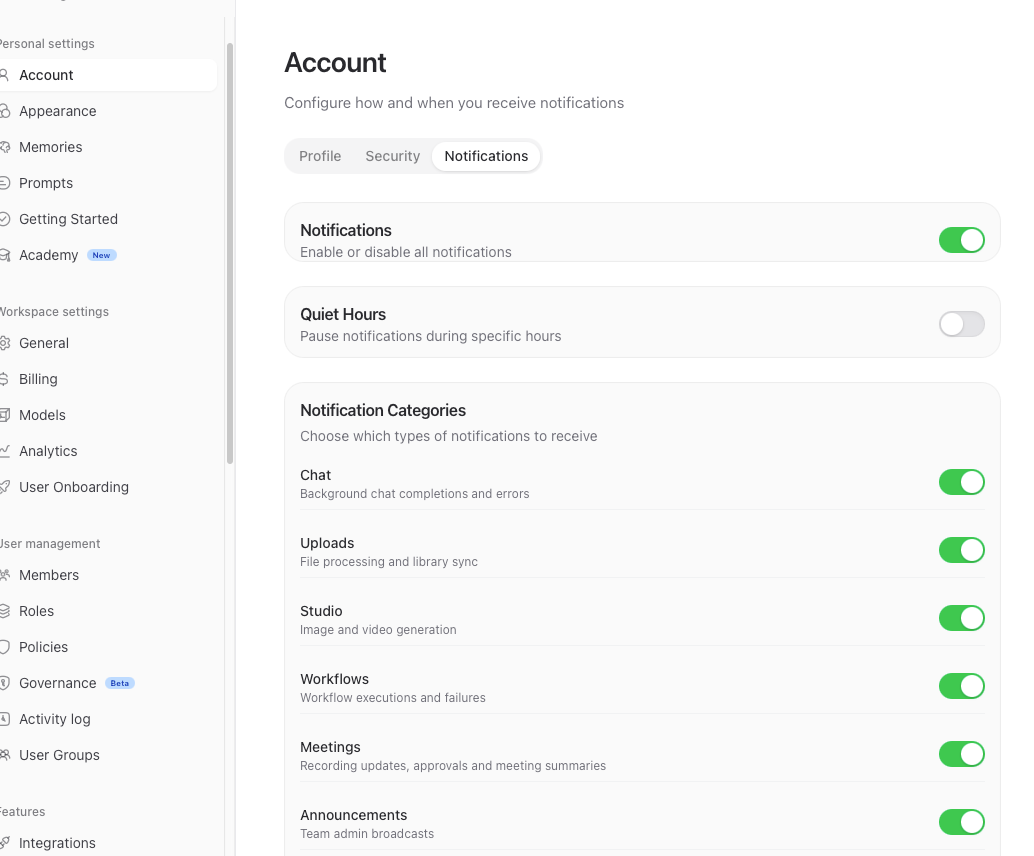
Here you can configure how and when you receive notifications.
Master Toggle
At the very top, there are two main switches:
Notifications — Master switch for all notifications
Quiet Hours — Pauses notifications during specific times (e.g., after work)
Notification Categories
Select exactly which types of notifications you want to receive:
Practical tip: If you only work in certain areas, turn off irrelevant categories — for example, disable "Studio" and "Meetings" if you don't use those features.
Delivery Channels
Choose where you want to see notifications:
In-App — View notifications in the app
Browser — Show desktop notifications
Email — Coming soon (in progress)
⚠️ Browser notifications only work if you’ve allowed them for innogpt.de in your browser. Check your browser settings if needed.
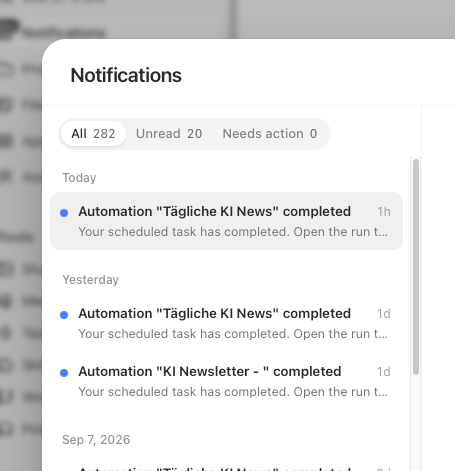
In the app, you’ll receive notifications on the home screen under Notifications:
Advanced Settings
In the Advanced Settings section, you can fine-tune your notifications:
Group similar notifications
Groups similar notifications within a time window — prevents spam, for example, when multiple uploads finish at the same time.
Selectable grouping period (e.g., 1 hour)
Auto-archive after
Read notifications are automatically archived after the selected period (e.g., 30 days).
Keep it tidy: With grouping and auto-archive enabled, your notification center always stays organized—even with heavy use.
Recommended setup for everyday use
If you’re unsure what settings to choose—here’s our best-practice setup:
Problems or questions?
Can’t log in to your account, lost your 2FA token, or need help with setup? Write to us — we usually respond within one business day.
Was this helpful?
Still need help? Ask the team