Assistants
An assistant in innoGPT is your dedicated AI agent for recurring tasks. You set it up once with a role, instructions, files, and tools—and then use it over and over again without having to explain the context from scratch every time. It’s ideal for anything where you need consistent results: corporate-style copywriting, code reviews, proposal creation, and research workflows.
1. Create an assistant
Open the section: Click on Assistants in the left sidebar (or use
Cmd/Ctrl + Shift + A).Create a new one: Click on “New Assistant” in the top right corner.
🚀 Get started faster with the Assistant Store: Instead of starting from scratch, open the Assistant Store by clicking the “Assistant Store” button. There you’ll find ready-made templates (Copywriter, Code Reviewer, Researcher, and many more) that you can install with a single click and then customize for your company.
2. The Interface
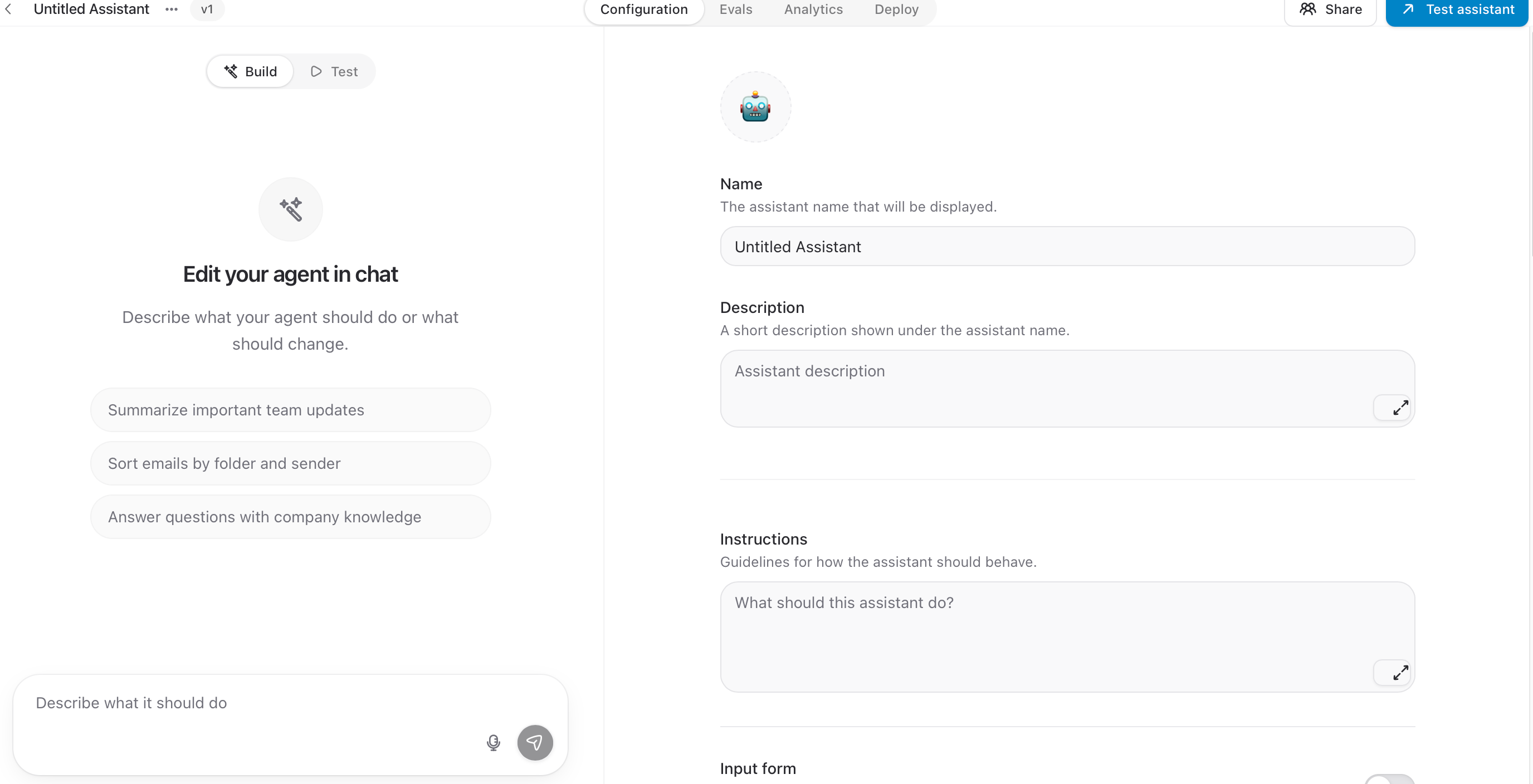
The Assistant interface consists of eight sections:
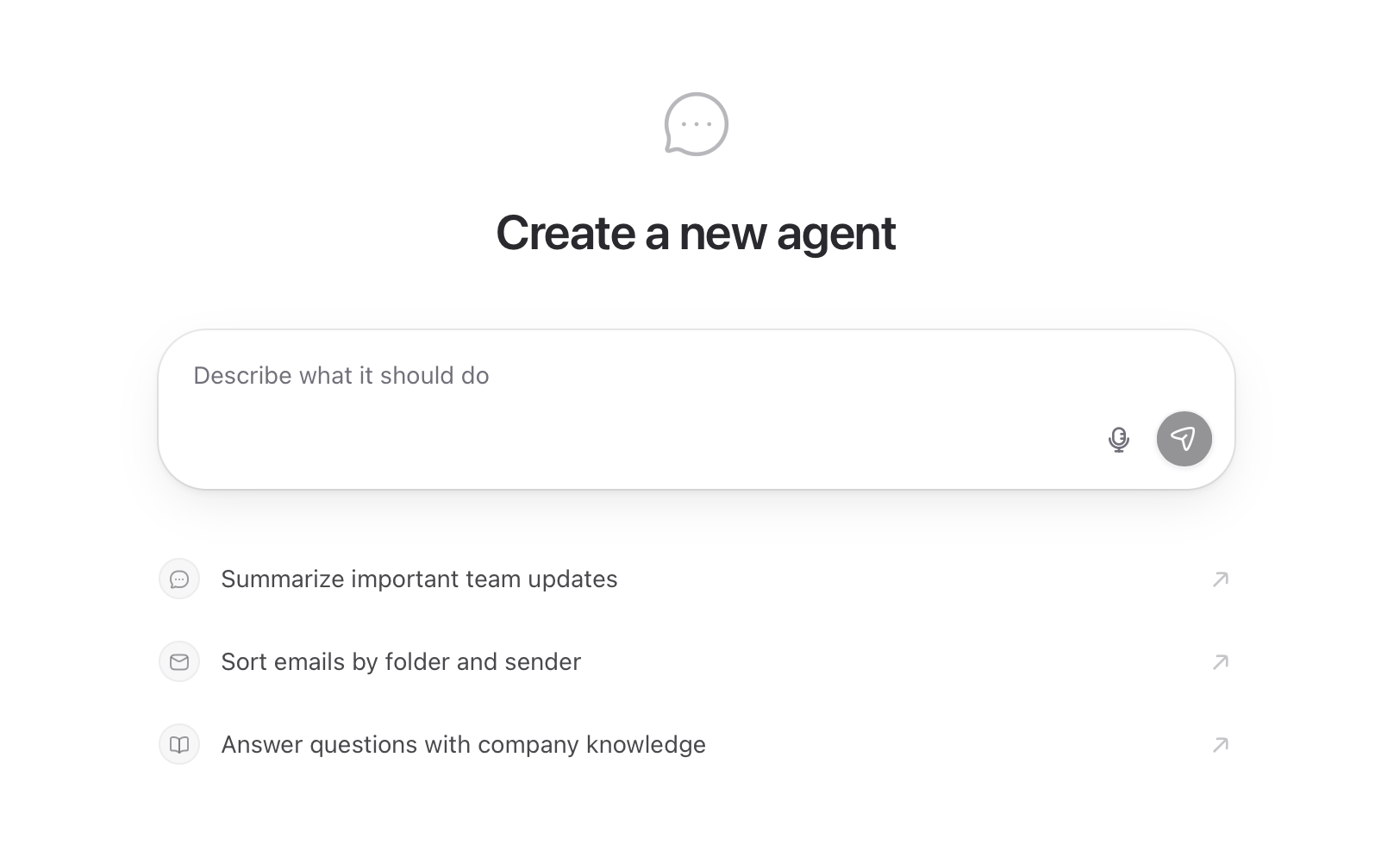
In the input field "Describe what it should do", explain in natural language what the assistant should be able to do. Example:
"Every Friday, create a summary of all team updates from my Outlook inbox and send it to me by email."
innoGPT then automatically asks you follow-up questions to clarify the most important details:
Which sources should the agent collect updates from?
Where should the summary be delivered?
How often and for which time period?
Style & content?
For each question, you get selection options (e.g., Outlook emails, Notion pages, Google Drive documents, manual input in chat). Navigate with the arrow keys, confirm with Enter, or skip with Esc. For individual answers, the field "Something else" is available.
Option B: Quick-Start Suggestions
Below the input field you'll find three ready-to-use starting points:
💬 Summarize important team updates
✉️ Sort emails by folder and sender
📖 Answer questions using company knowledge
One click, and the assistant is prepared for that task.
Option C: Start from a Template
Under "or start with a template" you'll find ready-made assistant templates such as:
🤖 Copywriter
🤖 Campaign Planner
🤖 GDPR Checker
You can adopt these directly and then adapt them to your needs.
Step 2: The New Tab Layout

After creating the assistant, it opens in the detail view. At the top you'll find the four sections:
⚠️ Important: After creation, you'll automatically land on the Configuration tab. Save your changes before switching between tabs.
Step 3: Configuration, Set Up the Assistant
In the Configuration tab, you define the complete behavior of your assistant.
Basic Information
Name: How your assistant appears in the menu and library
Description: A short explanation of what it does, for you and your team
Icon/Emoji: Choose a symbol so you can recognize it quickly
System Prompt
The system prompt is the central instruction for your assistant. Here you define:
Role: "You are a marketing expert for B2B SaaS."
Tonality: "Always respond factually, in a friendly way, and use informal language."
Rules: "Don't use em dashes. Reply in English."
Output format: "Deliver the result as Markdown with headings."
💡 Tip: The more precise your prompt, the more reliable the assistant. Stick to the structure Role → Task → Rules → Format.
Model Selection
Choose the AI model your assistant should use. innoGPT bundles all common models in one place:
OpenAI: GPT-5, GPT-5 Mini
Anthropic: Claude Sonnet 4.5
Google: Gemini 2.5 Pro
Others: DeepSeek, Llama, Cohere, Perplexity, Kimi, and more
You'll find all available models and prices at innogpt.de/modelle.
Connect Knowledge
Link your assistant to documents or data sources:
Upload files directly (PDF, DOCX, TXT, CSV, ...)
Add folders from your library
Connect external sources (e.g., Notion, Google Drive, SharePoint)
Enable Tools
Extend your assistant with additional capabilities:
Web search for up-to-date information
Image generation for visual outputs
Data analysis for calculations and evaluations
Canvas for longer, editable documents
Step 4: Evals, Ensure Quality
In the Evals tab, you systematically test whether your assistant shows the desired behavior.
Create test cases: Define typical inputs and the expected results
Run tests: The assistant processes all test cases automatically
Review results: Compare expected and actual answers side by side
Refine the prompt: Adjust in the Configuration tab until all tests pass
💡 Tip: Evals are especially worthwhile if you share the assistant with your team. This ensures it stays reliable even with unusual inputs.
Step 5: Analytics, Evaluate Usage
In the Analytics tab, you get an overview of how your assistant is being used:
Number of conversations per time period
Active users on the team
Most frequent topics and request types
Token usage and costs
This helps you quickly see which assistants really add value and where there's still potential.
Step 6: Deploy, Make the Assistant Available
In the Deploy tab, you decide who can use the assistant and through which channels it's available.
Visibility
Private: Only you see and use the assistant
Team: Shared with selected colleagues
Workspace: Available to all members across the entire workspace
Distribution
Depending on your workspace configuration, you can additionally deploy the assistant as:
Direct link for sharing
Embedded widget on your website
API endpoint for your own applications
Integration into tools like Slack or Microsoft Teams
⚠️ Important: The available deploy channels depend on your plan and the workspace settings set by your admin.
Best Practices
Start small: Build a simple assistant first, test it, and expand step by step
Maintain the prompt: Update role and rules when requirements change
Keep knowledge current: Link folders from the library so new documents are automatically included
Use evals: Run a test after every major prompt change
Watch analytics: Notice early when an assistant is no longer actively used and optimize it
Frequently Asked Questions
Can I copy an existing assistant? Yes. Open the assistant and choose Duplicate from the menu. This lets you test variants without changing the original.
What happens when I switch the model? The assistant uses the new model from the next message onward. The system prompt and all settings remain intact.
Can multiple assistants use the same knowledge source? Yes. Folders from the library can be linked to any number of assistants.
Why don't I see some tools? Tools are enabled at the workspace and user level. Ask your admin if something is missing.
Next Steps
If you have questions, you can reach us anytime at hello@innogpt.de or by phone at +49 4441 8859 759.
Connections
File Management: Upload documents (PDF, Word, Excel, Markdown, and more) that the assistant should use as a knowledge base. You can see the processing status right next to each file.
Enter a web source to be crawled and made available to the AI assistant
Synchronize your knowledge base
Link your own vector database
⚠️ Note on file size: We deliberately recommend a few curated files instead of many large ones—otherwise, the risk of hallucinations increases. For very large knowledge bases, it’s better to use the workspace’s Library/SharePoint.
✨ Skills
Preconfigure skills that are automatically activated when users chat with this assistant.
Skills are reusable sets of instructions or workflows. If you set up one or more skills here, they’ll be automatically active in every conversation with the assistant—the user doesn’t have to trigger them individually.
When is this useful?
Your assistant should always follow a fixed pattern (e.g., “QBR Preparation Guide,” “OKR Writing Guide”)
Specific formatting or tone skills should always be applied
You want to automatically provide domain-specific knowledge (e.g., “omega-technology-diepholz”) for every chat
💡 Example: A “Sales Assistant” with the “Professional Email Templates” skill enabled automatically provides appropriate email structures—without the user having to manually call up the skill.
🧩 Apps
Select the apps this assistant needs. Connected apps are automatically activated during chats.
Here, you link external MCP services that you’ve already connected in innoGPT—e.g., Outlook, Google Calendar, Notion, Google Sheets, Gmail, Google Drive. The assistant can then access these apps directly without the user having to activate them for each chat.
🔗 MCP
Select your own MCP server, whose tools are automatically available when chatting with this assistant.
If your workspace has configured MCP servers, you can specify here which ones your assistant is allowed to use automatically.
When is this useful?
Your assistant should be able to access a specific tool directly (e.g., “Get me all open Jira tickets in Project X”)
Specialized assistants for a specific system (Featurebase Assistant, GitHub PR Reviewer, …)
💡 All apps and MCPs must be configured and authenticated in the settings before linking.
🌐 APIs
Select Custom Actions whose endpoints are available as tools when chatting with this assistant.
Custom Actions are your own API endpoints that have been set up in your workspace—e.g., internal microservices, your own database APIs, or third-party interfaces. Here, you select which of these actions the assistant is allowed to call directly.
Typical use cases:
📊 Retrieving data from internal systems (CRM, ERP, BI tools)
🏷️ Triggering workflows (orders, tickets, approvals)
🔍 Lookups in proprietary data sources
⚠️ Setup requirement: Custom Actions are configured at the Workspace level by admins.
🤝 Subagents
Select which other assistants this assistant is allowed to delegate tasks to.
With sub-agents, you can connect your assistants into a team: Your main assistant can pass on subtasks to specialized sub-agents—just like a project manager who distributes work to specialists.
How to use sub-agents:
Enter here which other assistants are available as subagents
In the chat, type "
@" or the assistant will automatically load the sub-agentYou or the main assistant can specifically address a sub-agent
When is this useful?
Complex workflows involving multiple specialties (e.g., a “Project Manager” assistant delegates to a “Research Assistant,” “Copywriter Assistant,” or “Reviewer Assistant”)
Modular architecture instead of an overloaded mega-assistant
Reuse of proven assistants in other contexts
💡 Real-world example: A “Content Manager” assistant delegates to an “SEO Copywriter” for blog introductions, to an “Image Generator” for cover images, and to a “Translator” for the English version—all from a single chat.
🎯 Which integration to use and when?
5. Frequently Asked Questions
What is the difference between an assistant and a project?
An assistant is a persona with a fixed role (What can it do? How does it react?). A project is a context container for related chats and files on a specific topic. You can combine both: use a specialized assistant within a project.
What is the difference between assistant files and knowledge?
Assistant files are tied to that specific assistant. The Library/Knowledge is the workspace-wide knowledge base and is available to any assistant or chat with Library access. Rule of thumb: General company knowledge → Library. Specific specialized knowledge → Files.
Can an assistant call upon other assistants?
Yes, via sub-agents—configurable in the assistant settings. This is how you delegate subtasks to specialized assistants.
Related Articles
Was this helpful?
Still need help? Ask the team